 TrainNotes
Record and manage a live workout
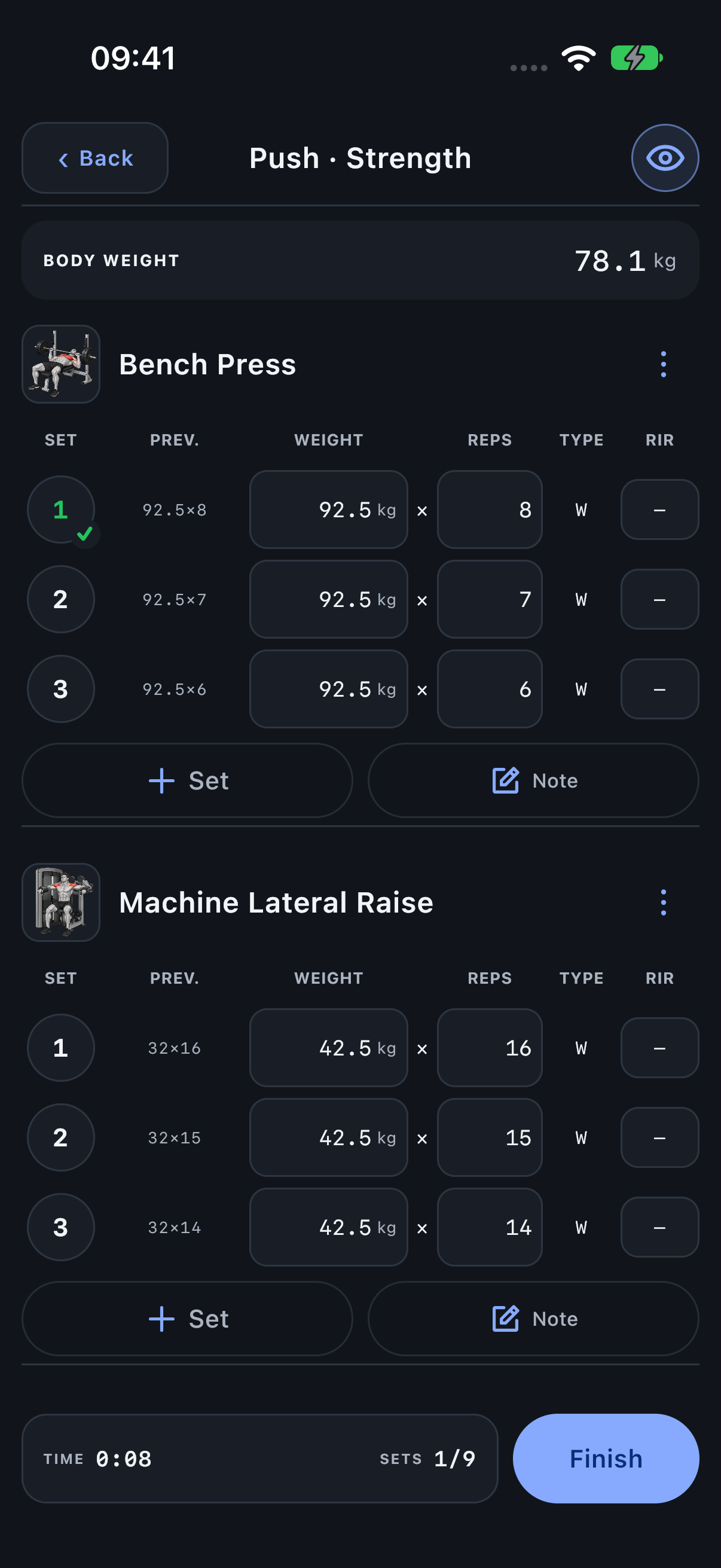
The live workout keeps the previous result beside today’s values. Record each real set, complete its badge and keep the session open until you finish.
Read the set row
- Set: the numbered completion badge. Tap it to complete the row; tap again to mark it incomplete.
- Prev.: relevant previous results, when available. It is context, not another editable set.
- Weight / Reps or other metric fields: today’s values. The Exercise’s tracking schema determines the fields.
- Type: W, WU, F, D or Myo. It identifies the training structure.
- RIR / RPE: optional effort value, shown only when enabled in Settings.
An accepted target, a previous result and today’s actual value have different purposes. Targets and progression explains which values can be filled next time.
Replace a value and dismiss the keyboard
- Tap the numeric field.
- Type the complete replacement number; you do not need to move a cursor or delete digits.
- Tap Done above the numeric keyboard.
- Review the value, then complete the badge when the set is done.
While the keyboard is visible, unrelated workout controls are hidden to leave room for entry. Done dismisses the keyboard; it does not complete the set.
Read a completed badge
- Green: the actual values match the target, or no comparable target exists.
- Orange: at least one value is below target.
- Purple: every comparable target is met and at least one value is higher.
- Gold/yellow ★: a new set PR takes priority over the other completion colours.
The number remains the completion control. A short explanation under a PR row tells you which record was achieved; several explanations can belong to one row. Read the record categories.
Keep notes with the right subject
Use Note for this workout’s Exercise details, such as how a set felt or why you stopped. Persistent Variant notes describe the implementation—for example seat position or a machine-specific instruction—and remain available next time. Notes do not change your PRs or targets.
Log bodyweight work
The session Body weight field is a snapshot used for bodyweight Exercises where effective load is needed. In a field labelled Added, enter extra resistance, not body weight plus the extra resistance. Use a consistent Exercise and Variant for comparable results.
At 79 kg body weight with a 10 kg added plate, record 79 in the session weight and 10 in Added. Entering 89 in Added would count the body weight twice.
Understand the load used in calculations
For external resistance, effective load is the positive weight you logged. For bodyweight work, it is the session body weight multiplied by the Exercise’s configured bodyweight contribution factor, plus any added resistance. The factor represents the portion of body weight used in that movement’s calculations; it does not measure the resistance at every joint.
With factor 1.0, body weight 79 kg and Added 10 kg give 89 kg for load/reps calculations. A movement whose factor is 0.7 uses 79 × 0.7 + 10 = 65.3 kg instead. Continue entering only the extra 10 in Added.
A load-based value may be unavailable when required body weight is missing. Timed work without a rep/load pair does not acquire a rep-based volume by converting seconds into reps.
Minimise, resume or hide completed work
Use Back or the downward header gesture to return to Train while the session remains resumable. Open the active-workout card to continue. The eye control hides completed rows; it does not delete them or remove them from the session totals.
Remove a recorded result safely
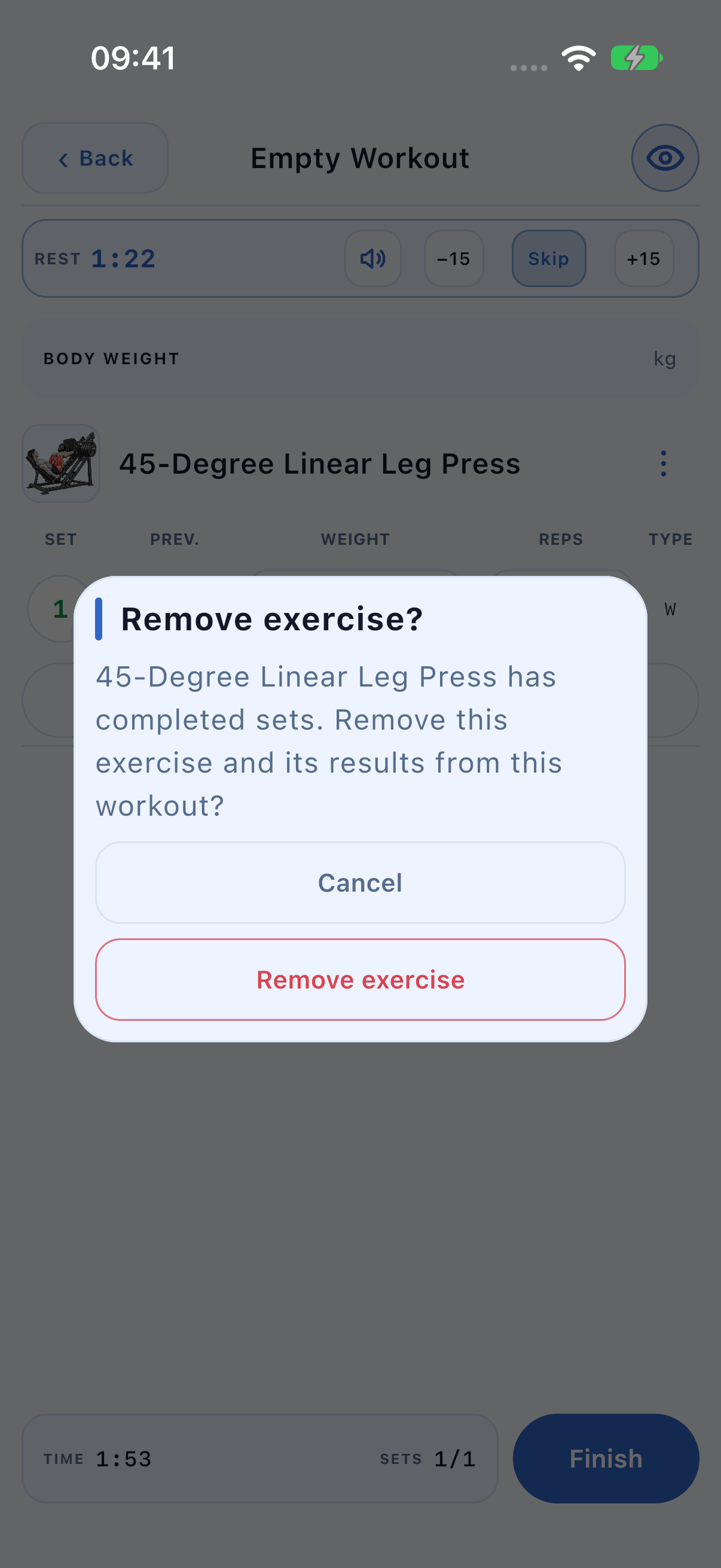
Unfinished rows can be removed directly. Removing a completed set, an Exercise containing completed sets, or completed Myo work asks for confirmation. Hidden completed rows still count as recorded work. Read the confirmation before proceeding.
Finish the session
Finish is at the bottom right. With incomplete rows, choose whether to keep only completed work or complete all and finish. An empty session can be discarded. Review the session summary after finishing. The historical record is available from History.