 TrainNotes
Understand targets, autofill and progression
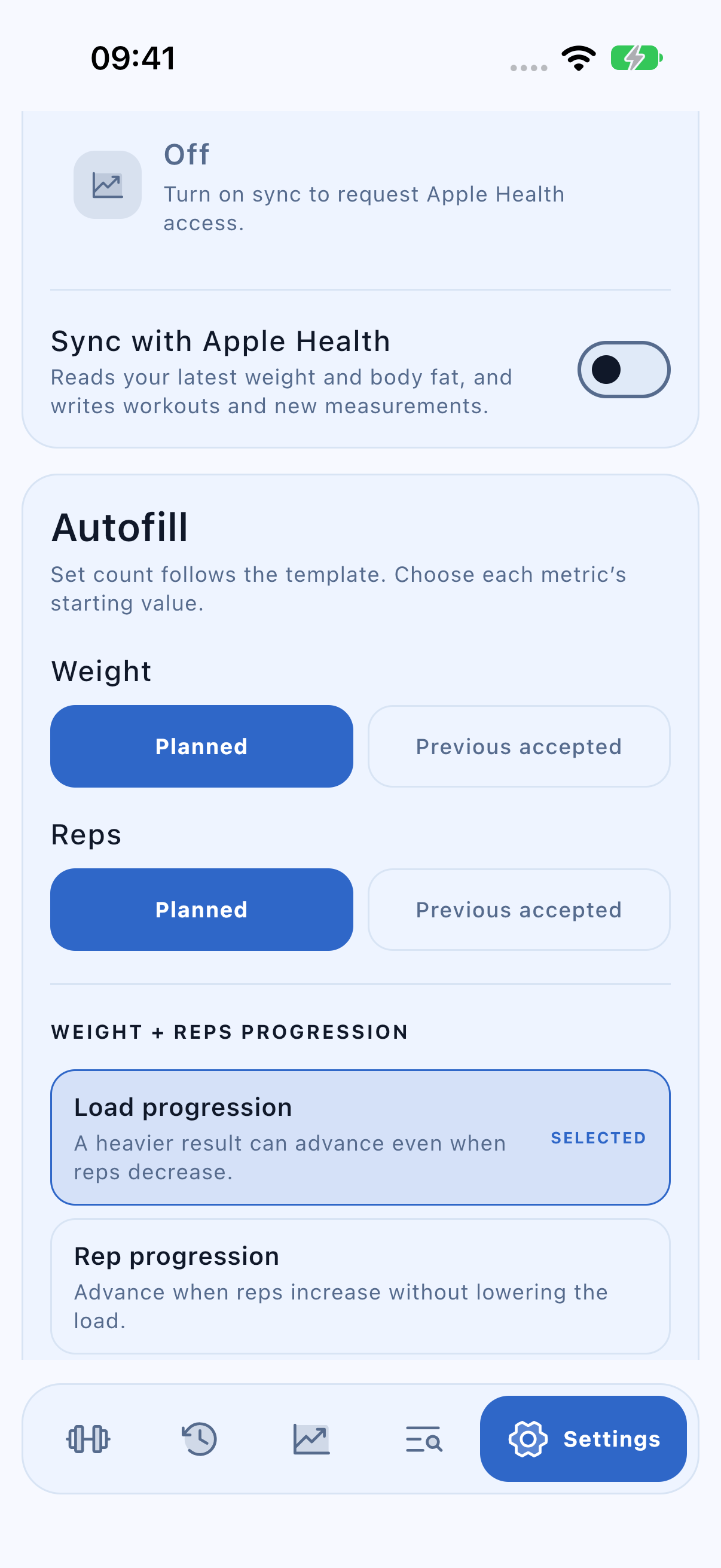
Keep the performance you recorded separate from the target you want next time. Autofill selects a starting value; the progression policy decides which completed results can become accepted future targets.
Separate Actual, Planned and Previous accepted
- Actual: the historical values you really performed.
- Planned: the target values written in the template.
- Previous accepted: a result accepted for this Variant and set position under the selected policy, or an explicit Use actual action.
A lower actual result can remain accurate history without lowering the next target. Accepted values remain Variant-specific; a Drop stage does not replace the ordinary working-set target.
Choose how a session starts
- Open Settings → Autofill.
- For Weight, choose Planned or Previous accepted.
- Choose the Reps source independently.
- Choose the Weight + Reps progression policy.
- Start the next session to use the updated choices.
If no accepted result exists for that Variant and set position, the planned value is used. The template supplies the starting set count. Settings changes do not retroactively rewrite a running session.
Compare the four policies
Start with an accepted target of 80 kg × 10. These examples show acceptance rules, not a recommended programme:
| Policy | Rule | Result example |
|---|---|---|
| Load progression | A heavier load can be accepted with fewer reps. At equal load, reps cannot fall. | 82.5 × 8 can advance. |
| Rep progression | Load and reps cannot fall; if load rises, reps must also improve. | 80 × 11 can advance. 82.5 × 10 cannot. |
| Strict target | Every target metric must be met or exceeded. | 82.5 × 10 can advance. 82.5 × 9 cannot. |
| Manual | No automatic advancement. | Use actual explicitly when you want to accept a result. |
The policy accepts achieved values. It does not automatically prescribe an extra 2.5 kg after a successful week.
Accept a result deliberately
For a completed Weight + Reps row whose target was kept, look for Target kept or Next target unchanged directly below the row. Choose Use actual there when you deliberately want that result accepted, including a reduction that the automatic policy would reject. In Manual, the decision is offered after completion; it is not a separate item in the Type menu. If the result was already accepted, that prompt is unnecessary.
Accept the load while keeping a range
For a ranged target, the decision action is Use weight. It accepts the actual load while preserving the planned rep range and upper rep target; it does not replace 8–12 with a single actual count. The compact × dismisses a target decision without accepting it. These decisions affect future targets, not the original historical workout or another Variant.
Use a rep range
- Open the row’s Type → Rep target / range.
- Select Rep range and enter Minimum and Maximum.
- Save, then enter the one actual rep count you perform during training.
- Choose Single rep target when you want to return to one target count.
Within the range, the rep component matches; below Minimum is Below and above Maximum is Above. Weight and other metrics still affect the badge, and a PR takes priority. Autofill retains the planned range and its upper rep target instead of shrinking the range to one in-range result.
For a target of 80 kg × 8–12, a result of 80 × 9 meets the rep component. A result of 75 × 9 can still be Below because the weight fell. A result below 8 does not automatically promote a ranged target.