 TrainNotes
Record body measurements and photos
Keep weight, body fat, circumferences and progress photos in dated check-ins. Record only what you measured on that date; a weight-only entry does not require a complete set of circumferences.
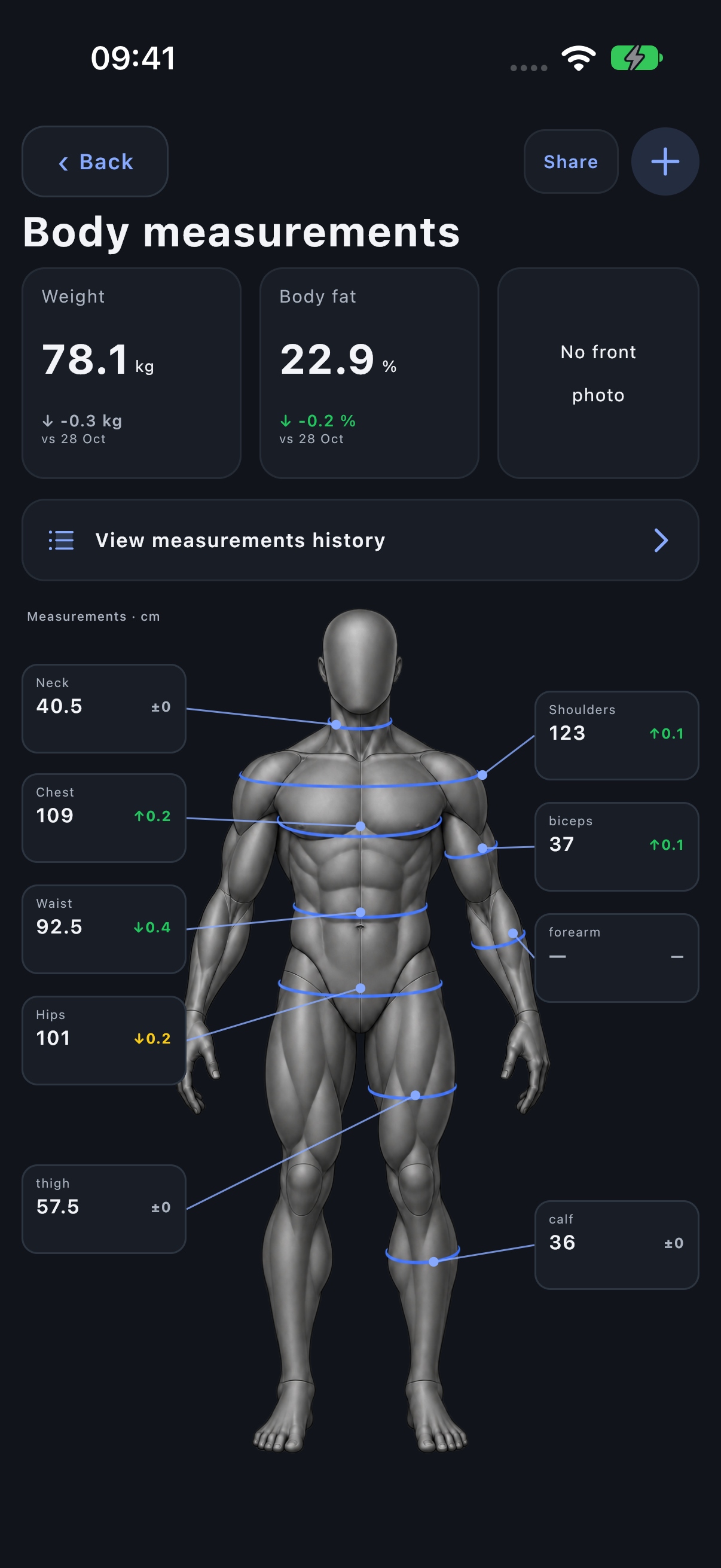
Open measurements and review the latest values
Choose History → Body measurements. The body figure and latest values provide entry points to individual measures. The history can be narrowed to Weight & Fat, Circumferences or Photos so frequent weigh-ins do not hide less frequent measurements.
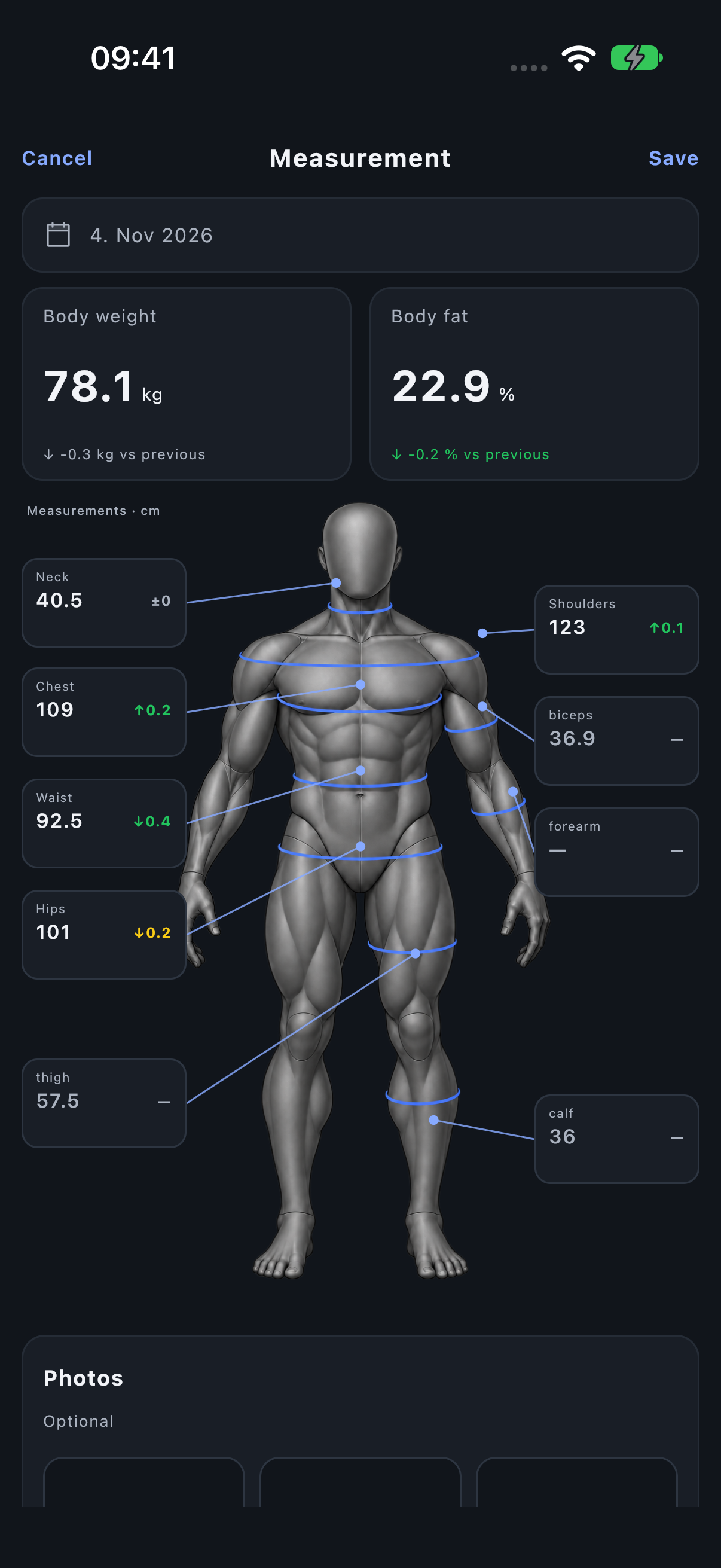
Create a dated check-in
- Choose Add body measurement.
- Check the date of the entry.
- Select a measurement on the figure or in its fields.
- Enter the value in the unit shown and tap Done.
- Add other measured values or photos, then Save the check-in.
Follow the focused measuring instruction
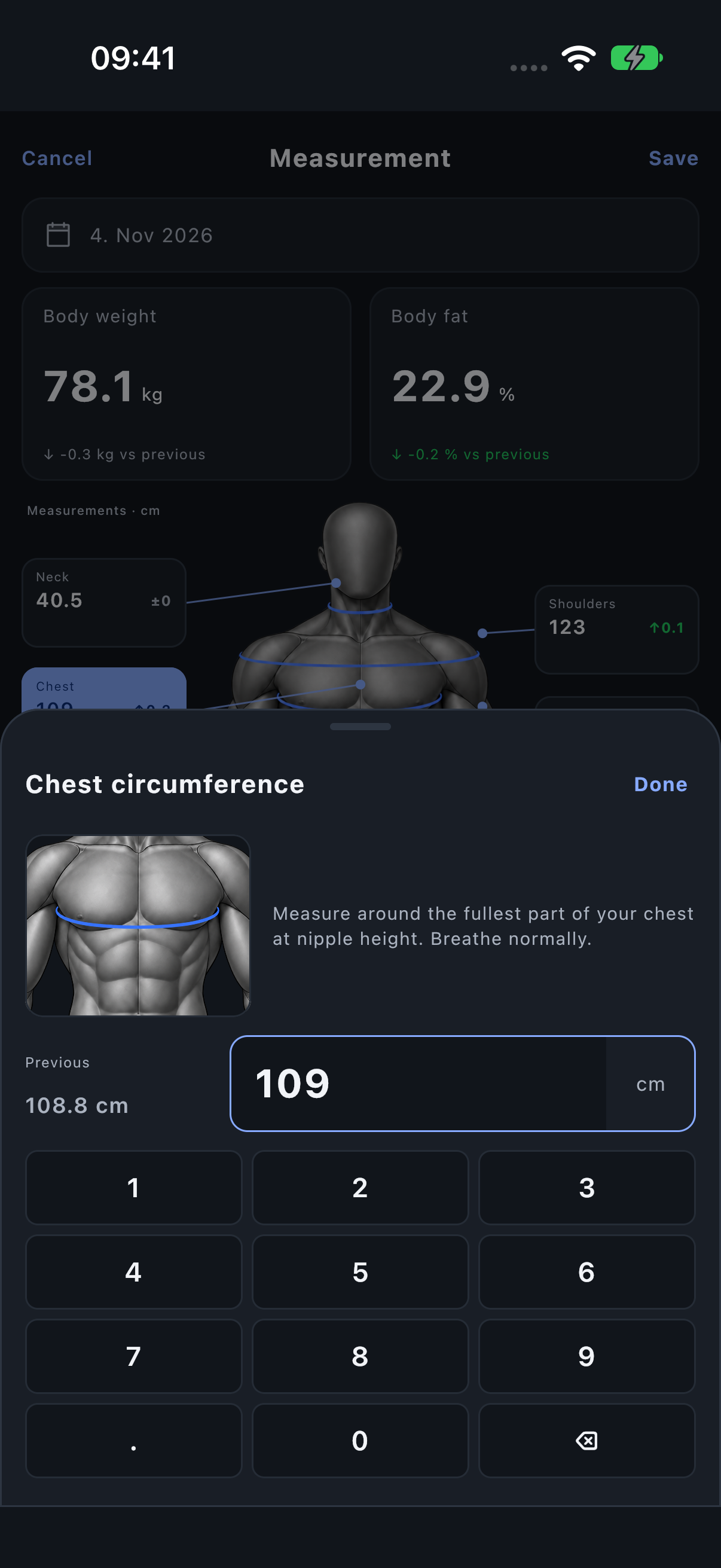
Selecting Chest, Waist or another circumference opens that region’s illustration, instructions and keypad. Use consistent placement, posture and tape tension across dates. The illustration identifies the measurement location; it does not infer a circumference from a photo.
Track left and right consistently
Where separate left/right entry is enabled, each side is a separate value. Use the same side when comparing dates. A combined limb value and a side-specific value are not interchangeable measurements of symmetry.
Add and reframe photos
Use Front, Back or More to choose a photo from the library or camera. Reframe with the crop controls before saving: move the image to choose the visible area and adjust its scale. For useful comparisons, keep pose, distance and lighting as consistent as practical.
A photo and numeric circumference are separate records. Removing a whole dated check-in also removes its associated measurements and progress photos, so read that confirmation before deleting.
Compare changes with context
A smaller circumference does not always mean a better result for your goal. Comparison colours follow a metric convention: decreases in weight, body fat and waist-related measures use green, while increases in most other circumferences use green. The opposite directions use orange or yellow; unchanged values use blue.
Read the signed change, dates and units rather than treating colour as a medical or personal-goal judgement. For visual comparison layouts, open measurement share cards.