 TrainNotes
Share statistics or session results
Prepare a readable selection of charts for the question you want to communicate. Sharing is available in the main Statistics view, deeper scopes, Exercise/Variant progress and workout summaries.
Start from the view you want to share
- Choose the period, metric and role in Statistics, or open the muscle/classification scope you mean.
- Check the screen title and values.
- Tap Share.
- Select the available modules you want to include.
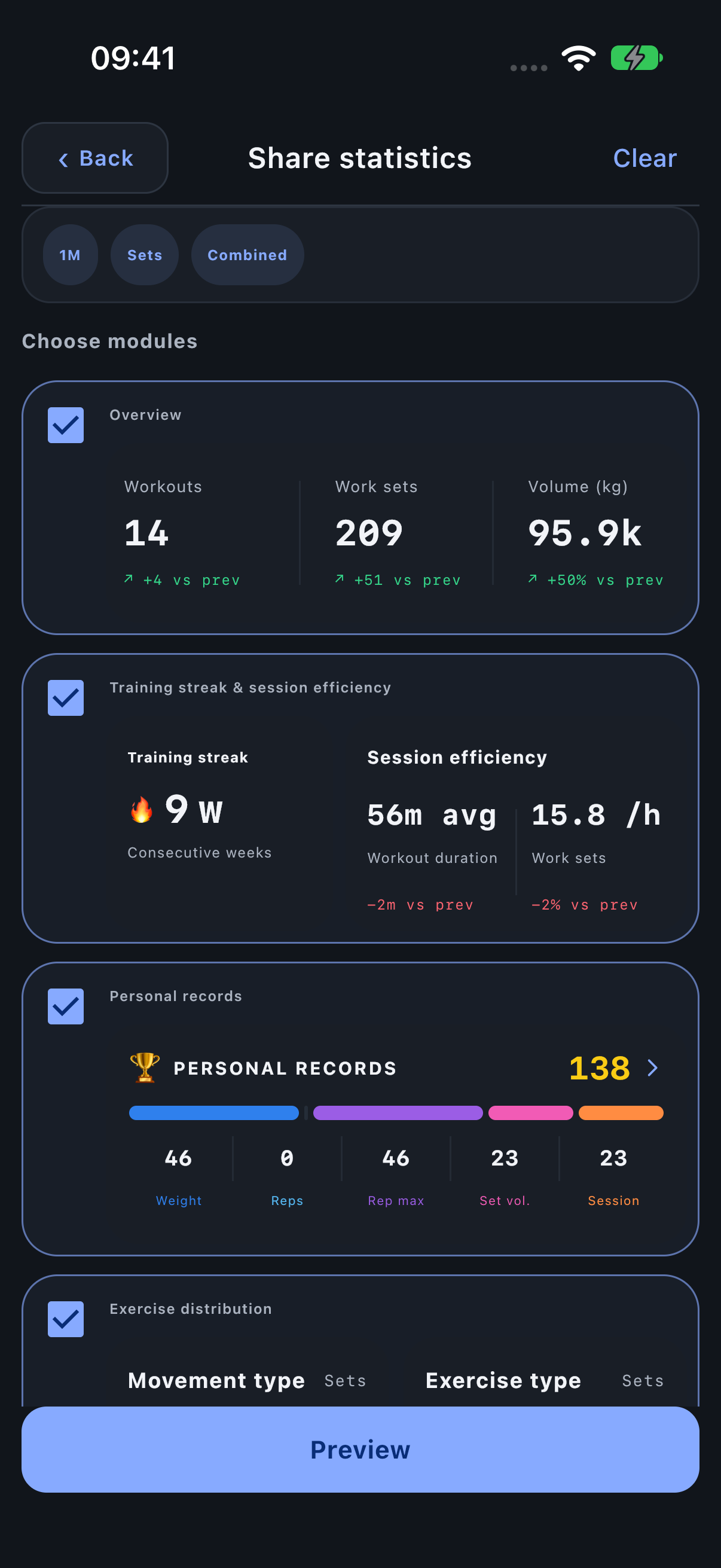
Choose evidence for one message
For a change in training balance, a distribution chart and its values may be enough. For progress on one machine, use the named Variant’s result and record history. For a finished session, use its Summary export rather than a monthly Statistics image.
Clear and All manage the selection. Leave out unrelated modules, even if they are available; the recipient should understand what the image is intended to show.
Review the generated pages
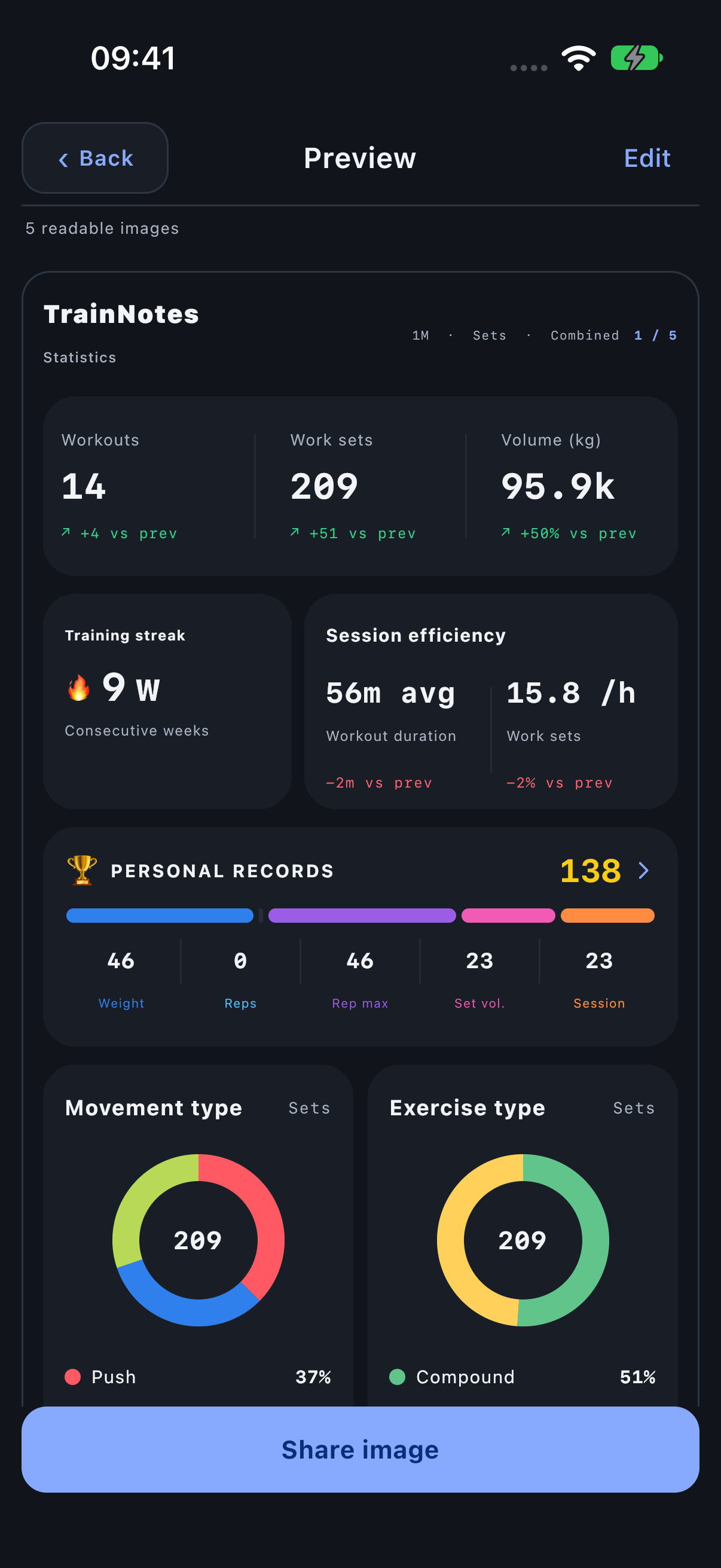
Open Preview and inspect the actual image pages. Longer content is packed into multiple readable images. Lists split at meaningful boundaries rather than being squeezed into one extremely long strip.
Check the values, legends, titles and period before choosing Share image. The exported background follows the app appearance, including the space between modules.
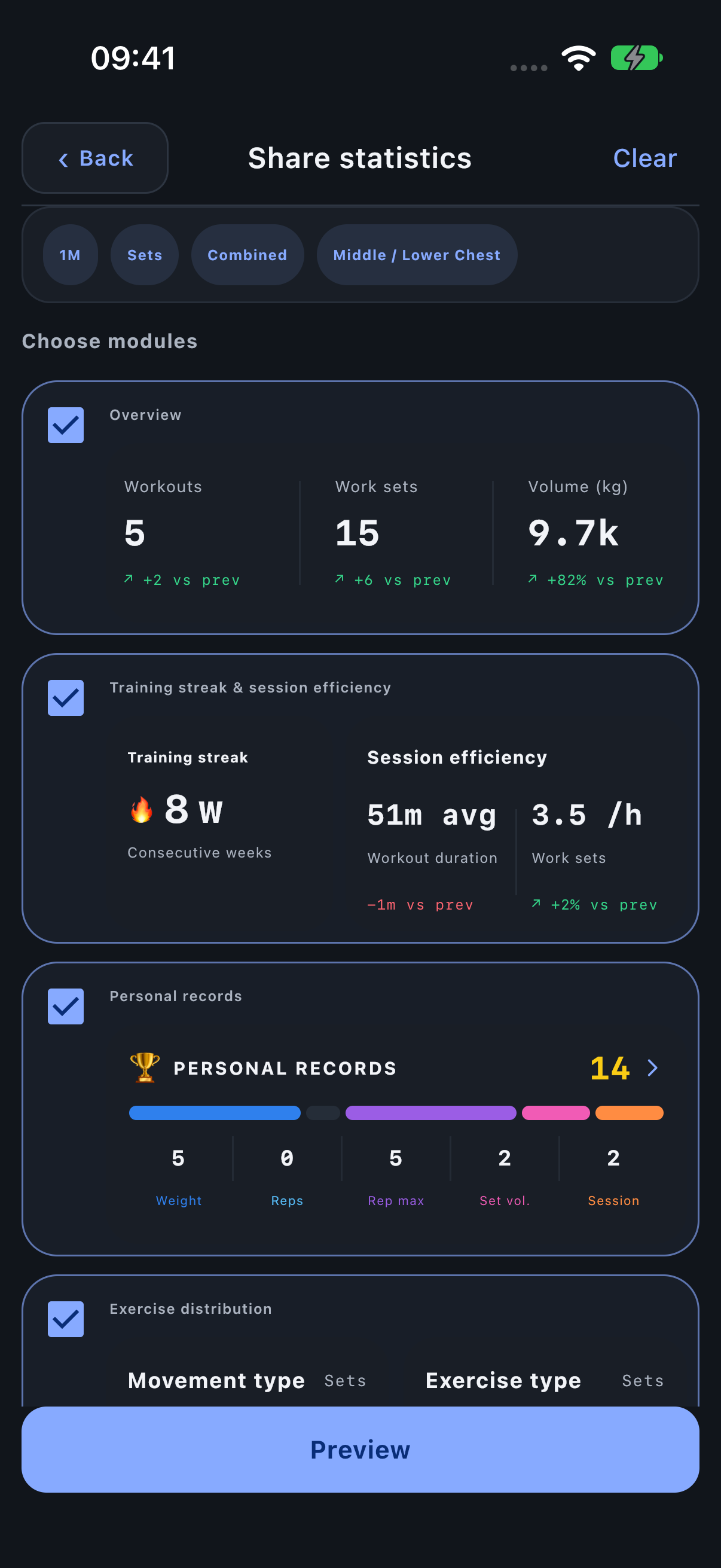
Share a focused muscle or Exercise view
Open Share from the focused screen to keep its context. The selected muscle, period, role or classification should be visible in the prepared export. Exercise and Variant progress offer their own chart, best-result, recent-set and record modules.
Understand the accompanying text
The iOS share sheet receives images and a short Created with TrainNotes text item. When an App Store URL is configured, that text also includes the link. It is separate from the pixels of the image. Destination apps decide whether they include, edit or omit the text.
TrainNotes generates the images locally. It does not need to upload your statistics to a public profile to make the export. Use measurement share cards for photo/circumference layouts and their square or portrait formats.