 TrainNotes
Choose appearance and workout preferences
Settings controls how TrainNotes displays and starts your work. Choose preferences before the next session, then keep the live workout focused on recording actual results.
Choose the theme and light-card colour
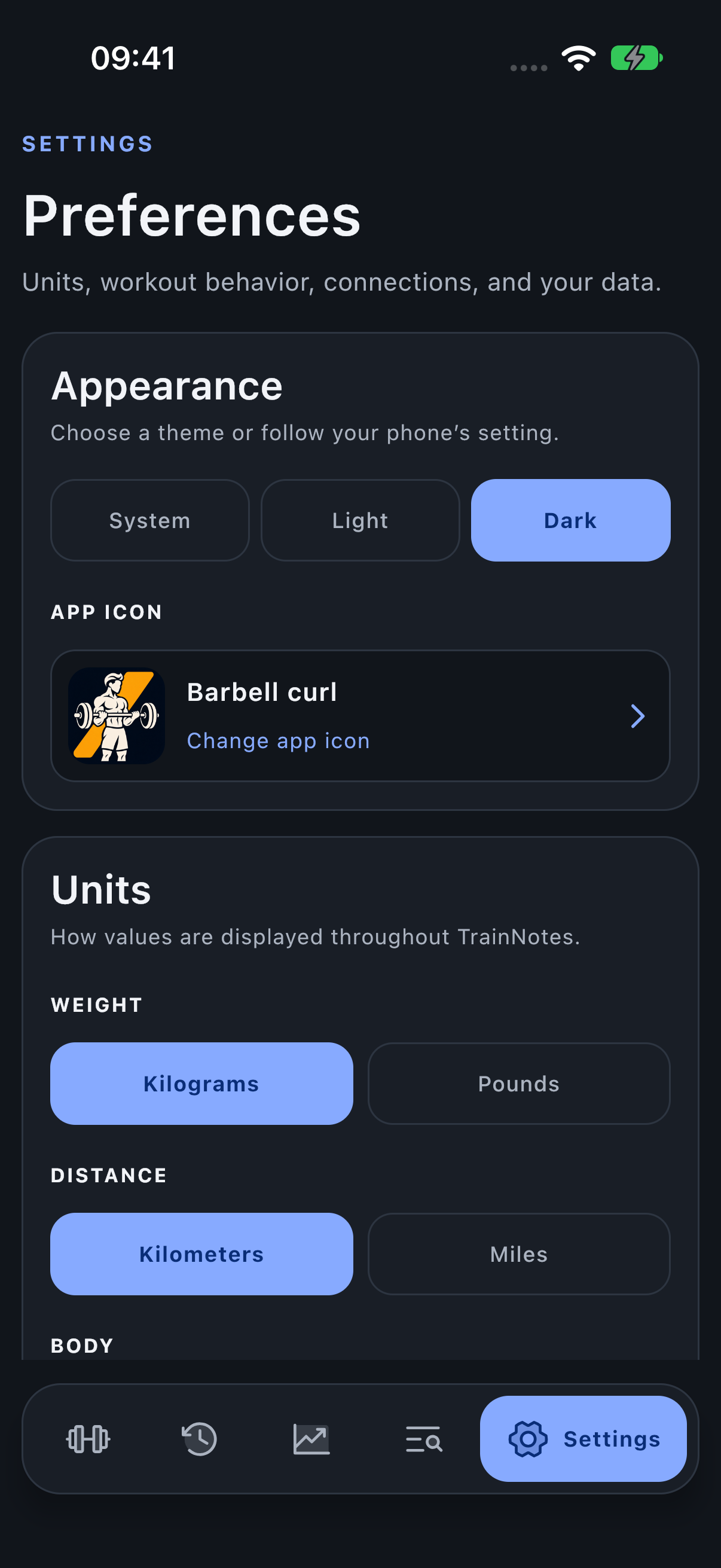
Appearance offers System, Light and Dark. System follows the phone setting. In light appearance, Card background → Choose color opens the full colour picker. It changes card surfaces while the page background, numeric fields and semantic status colours retain their roles.
Choose a colour that keeps labels and status values readable. A vivid surface may look different behind orange or gold numbers than it does in the picker.
Pick a light-card background
Choose Light, then Card background → Choose color. Use the system palette to select a colour, rather than a fixed list of presets. Inspect it behind the app’s text and semantic status colours before settling on the result.
Select a Home Screen icon
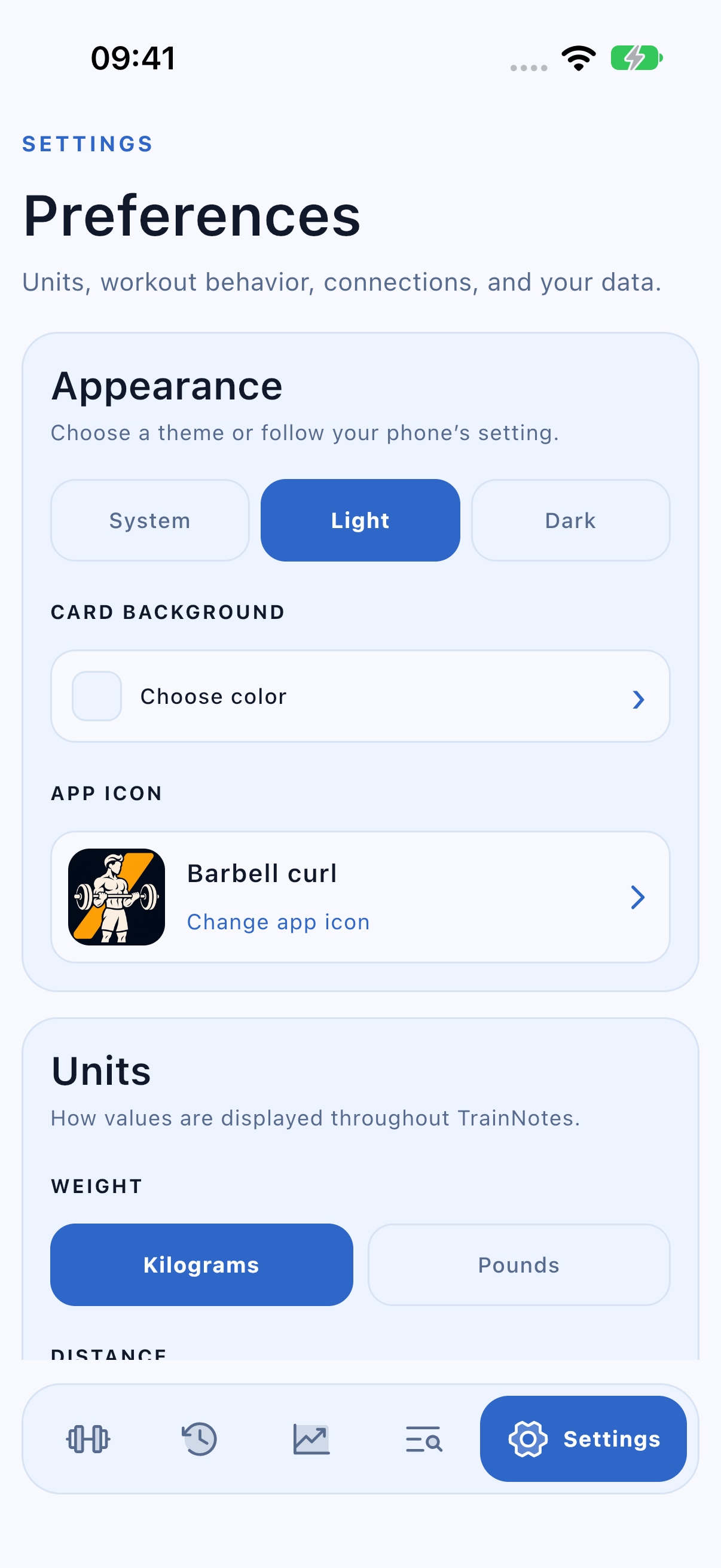
Open App icon, scroll the icon grid to see all choices and select one of the supplied TrainNotes illustrations. This changes the Home Screen icon; it does not change the Exercise catalog artwork, workout history or selected theme.
Set units and date preferences
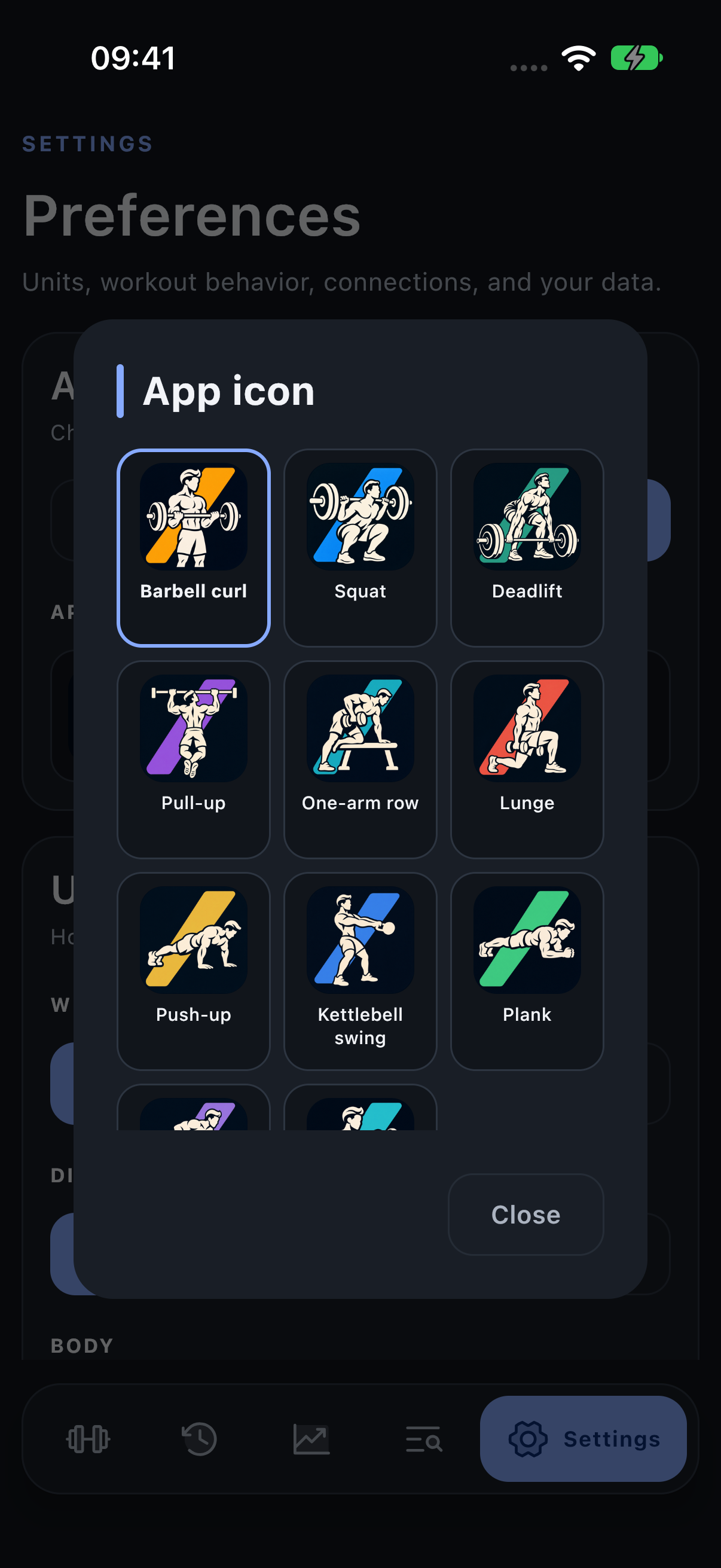
Weight, distance and body measurements have separate unit choices. Date and time controls include Week starts on and 12/24-hour time. Enter the unit shown by each field; an external CSV’s source unit can differ from your display preference.
Compact controls cap system text growth to preserve the app layout and touch controls on narrow screens.
Choose rest, screen and effort behaviour
During workout contains Rest timer, duration and alert options, Keep screen on, and Set effort. Off hides the effort field; RIR or RPE adds one compact per-set value. RIR accepts whole values from 0 to 10: RIR 2 means you estimate two further reps were available. RPE accepts values from 1 to 10 and records perceived exertion on that scale. These are your estimates, not measurements taken by the app. An effort value does not automatically change the set type to Failure.
See rest timer controls for ordinary Exercise overrides and Autofill for the sources of starting Weight/Reps values.
Choose optional Apple Health access
Enable Sync with Apple Health only if you want that connection. When authorised, TrainNotes reads the latest weight and body fat and writes finished workouts and new measurements. Grant the categories you intend through iOS permissions.
The status row reports availability or access problems. If access is denied, change TrainNotes permissions in the Health app. Core logging remains available without Health.
Check your trial or unlock full access
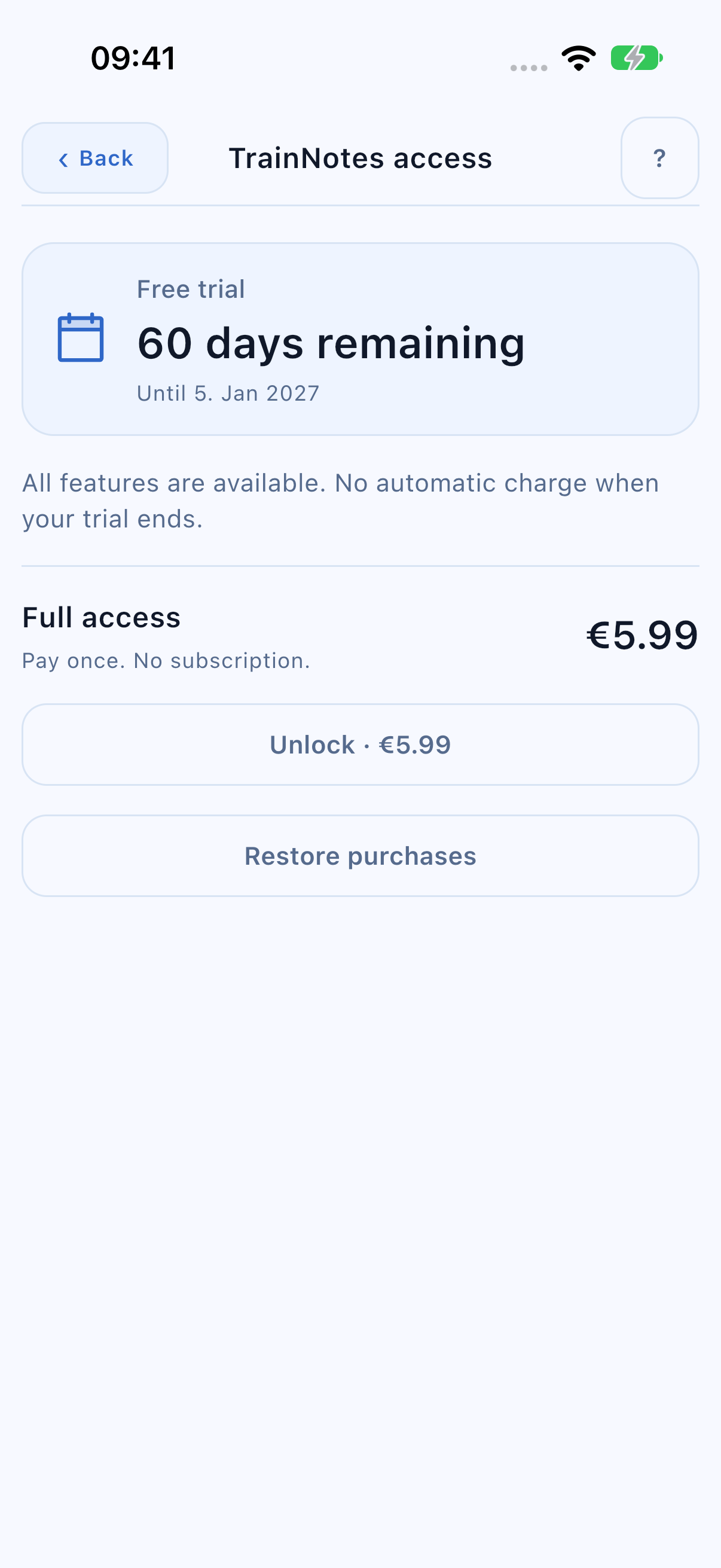
The trial is activated during first launch. Later, open Settings → TrainNotes access to see the remaining days and end date, unlock full access once, or restore purchases. The screen shows the current App Store price. There is no subscription or automatic charge when the trial ends.
Buying during the trial is optional. If Apple asks for purchase approval, access updates after approval; cancelling a purchase leaves your current access unchanged.
Read the access conditions
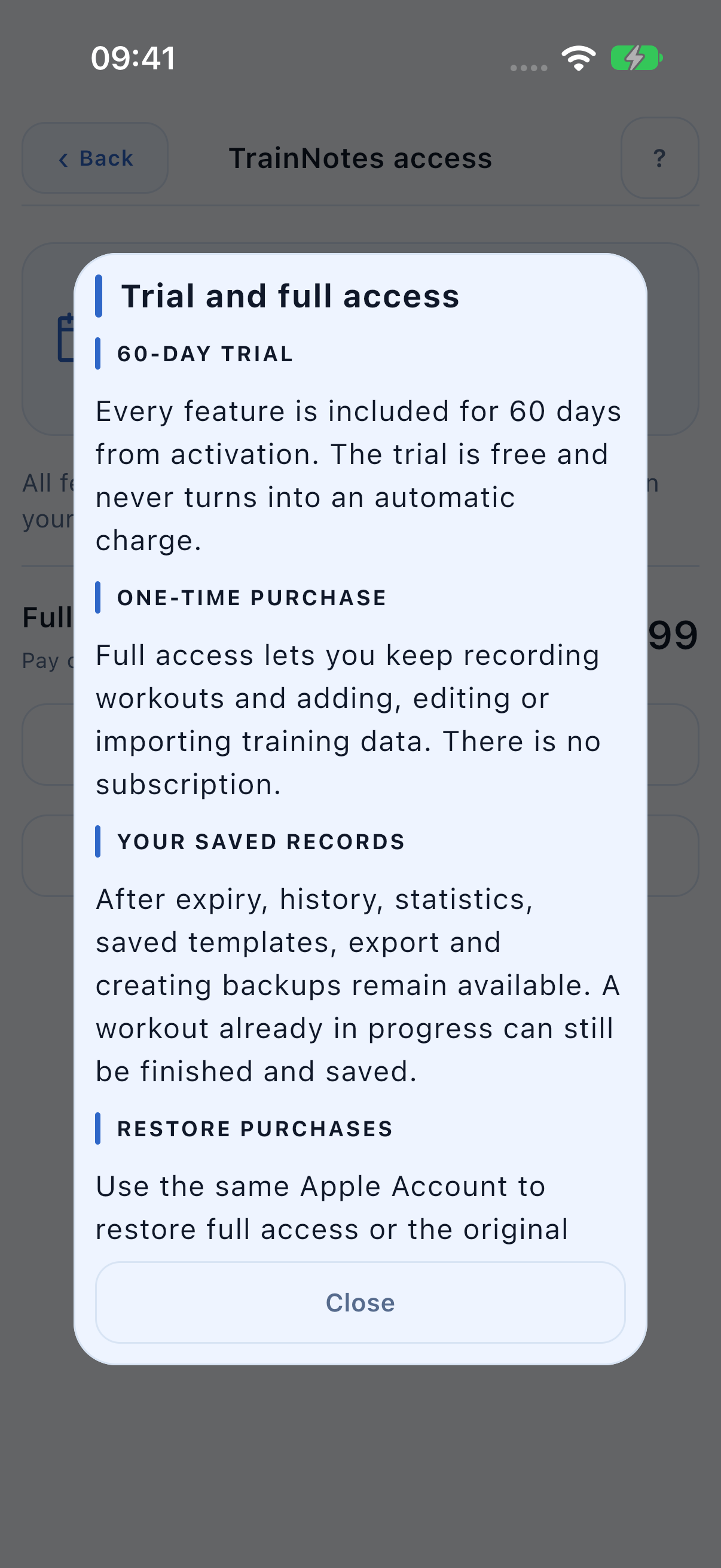
Tap ? at the top of the welcome or access screen for the duration, one-time purchase, retained records and restoration details. Close the explanation to return to the same screen. If the App Store cannot load prices, Try again retries the request; activation waits until the price can be displayed.
Use your records after the trial ends
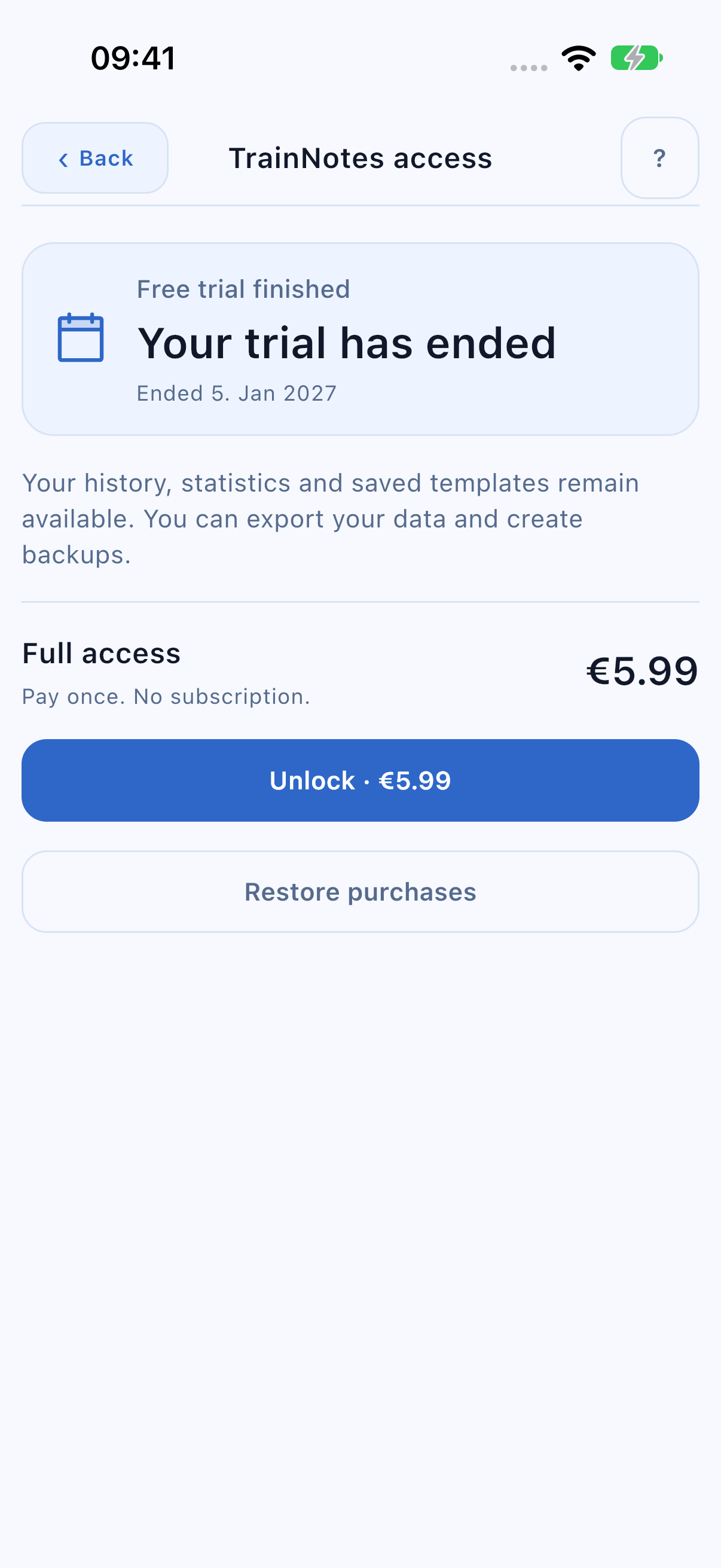
After expiry you can still read your history, statistics and existing templates, export history and create complete backups. Starting a new workout, changing training content, importing or restoring a backup requires full access. A workout already in progress can still be resumed, finished and saved. Appearance and other preferences remain adjustable.
Choose Restore purchases to restore your permanent unlock or the original trial start for your Apple Account. A data backup contains your records, not your licence; importing it cannot restart a trial. Your recorded workouts are never deleted because the trial ended.
Find the data tools
Data and backup contains Import history, Export history, Export backup and Restore backup. Read their different scopes before choosing a file operation. Reminder schedules are set in individual templates.
Support and privacy
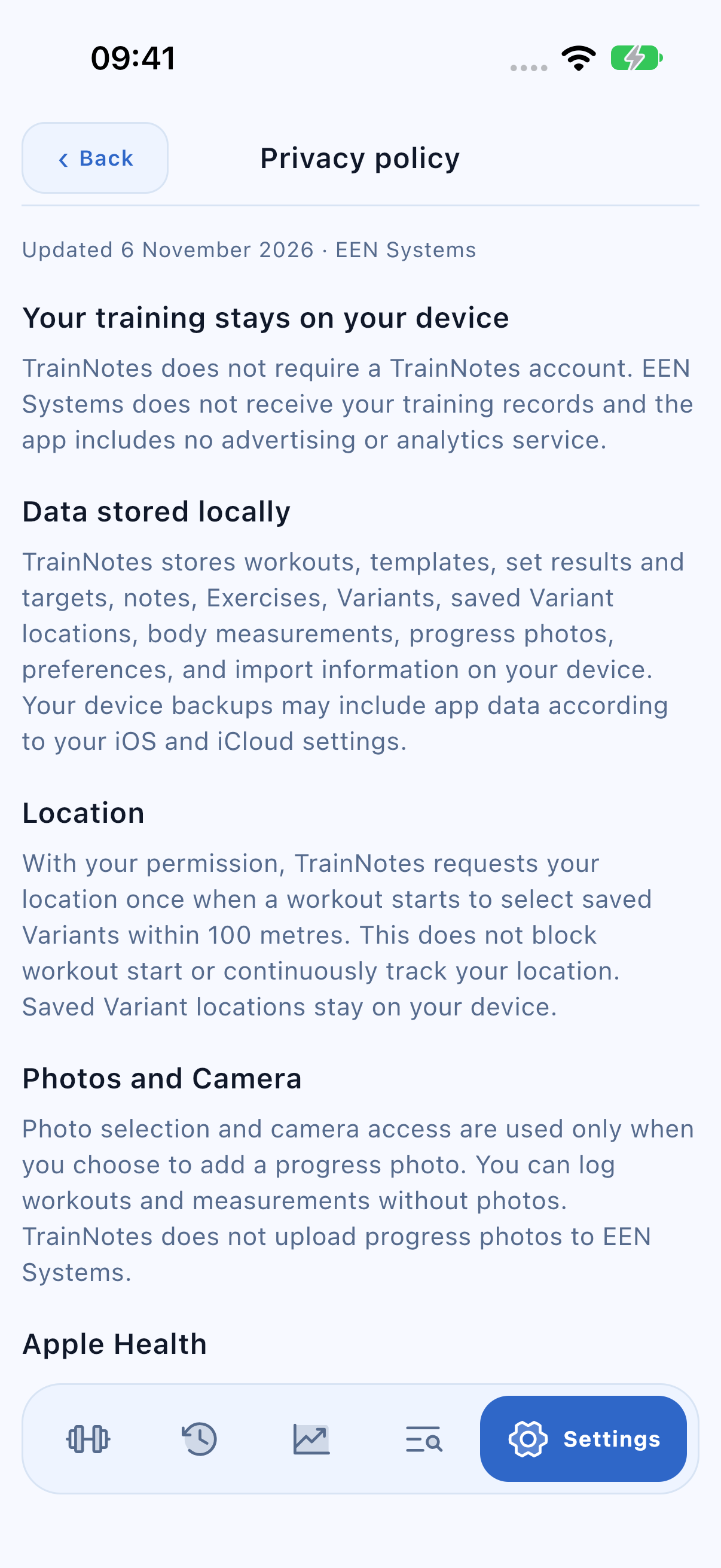
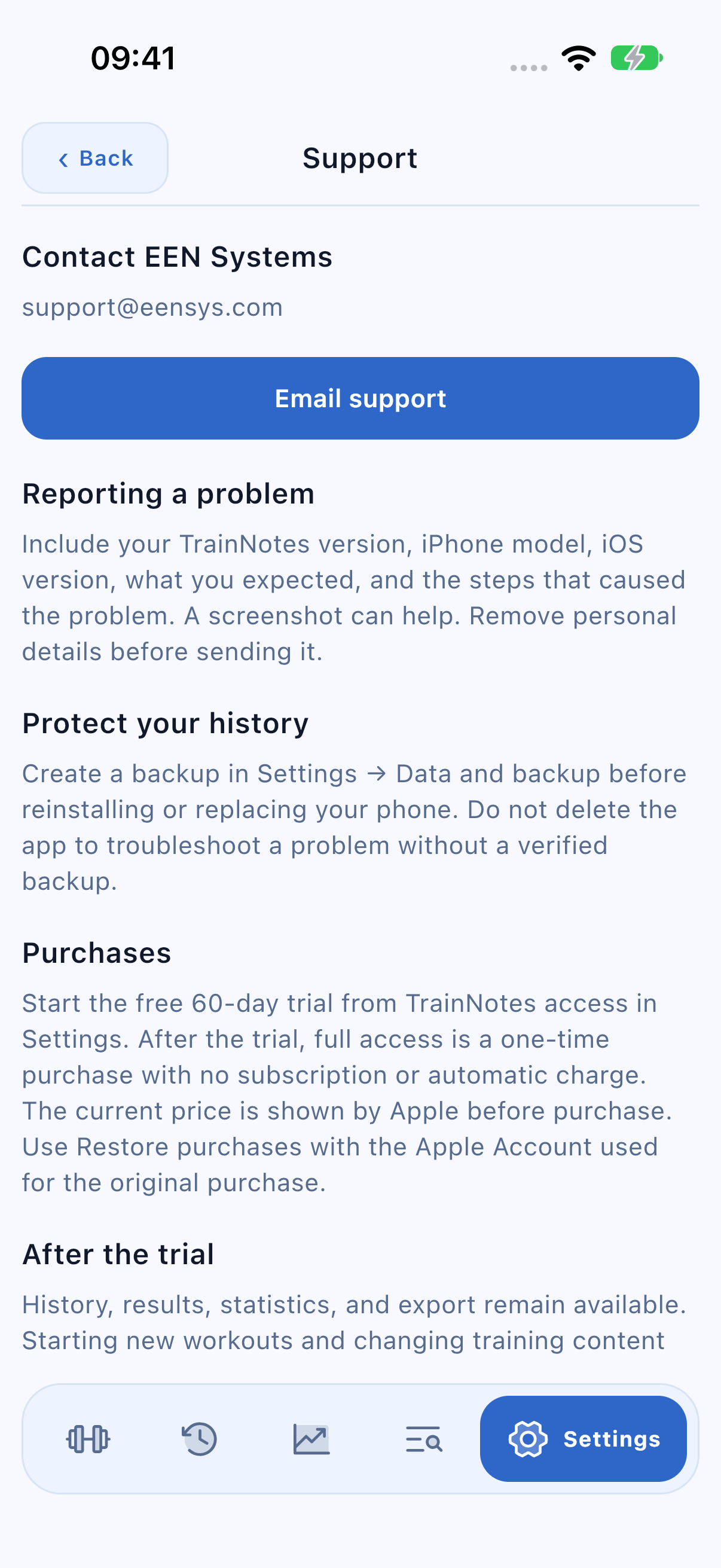
Open Settings → Help and privacy. Support shows EEN Systems’ email address and what to include in a report. Privacy policy explains local records, optional permissions, Apple purchases, sharing, and deletion. Both pages work offline. Email support opens your chosen mail app; TrainNotes does not automatically attach training records or photos.
Read the privacy policy
Choose Privacy policy in Help and privacy. Read how local storage, optional permissions, Apple purchases, exports, and deletion work. This page is bundled with the app and remains readable offline.