 TrainNotes
Plan a repeatable workout
Create a template when you want the Exercises, target sets and methods ready for the next visit. The template describes what you intend to attempt; the live workout records what actually happened.
Create the plan
- On Train, choose New workout template.
- Enter a name you will recognise in the gym and tap Build workout.
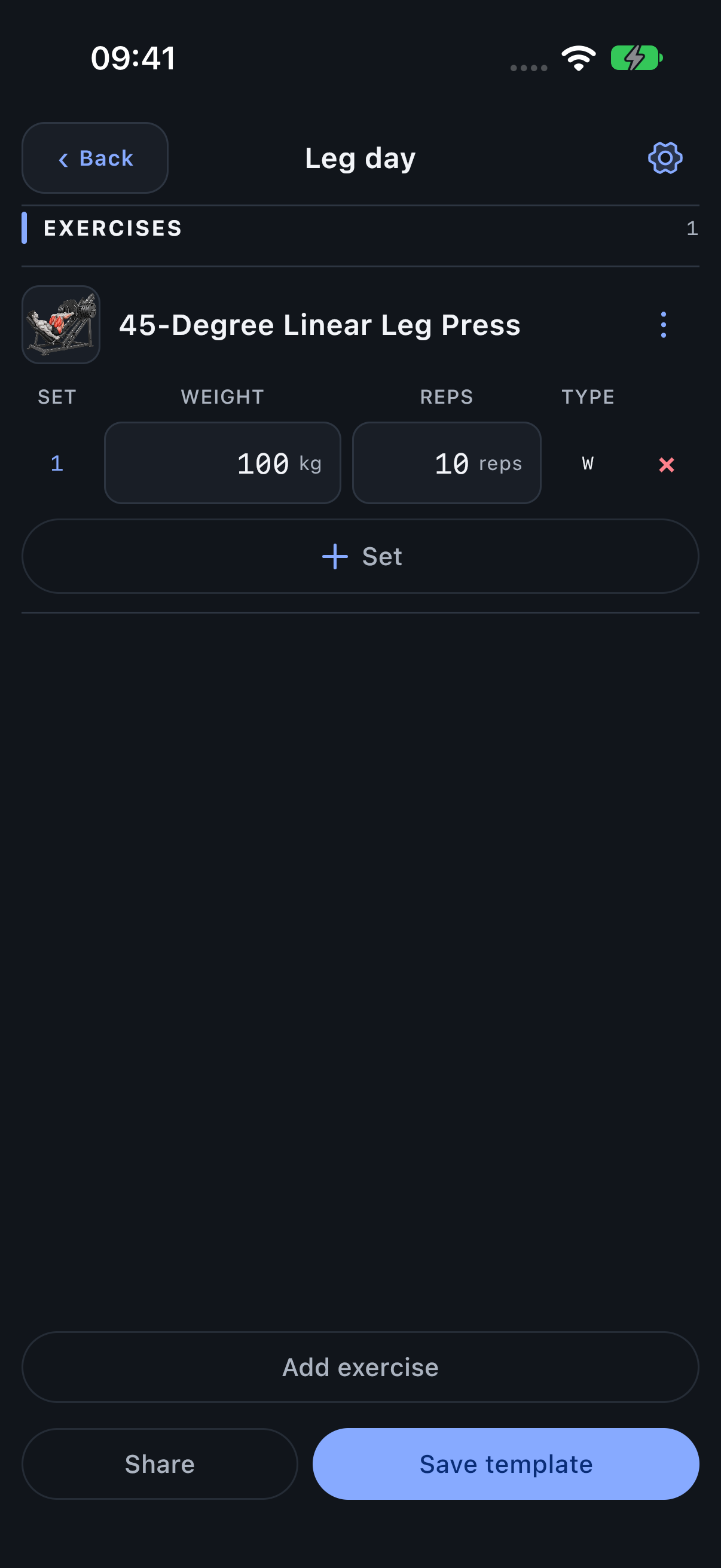
- Choose Add exercise. Narrow the catalog with the search and the Equipment, Muscle, Favorites filters, then select a movement.
- Enter the target values for each set and use + Set for more.
- Tap Save template to keep the plan.
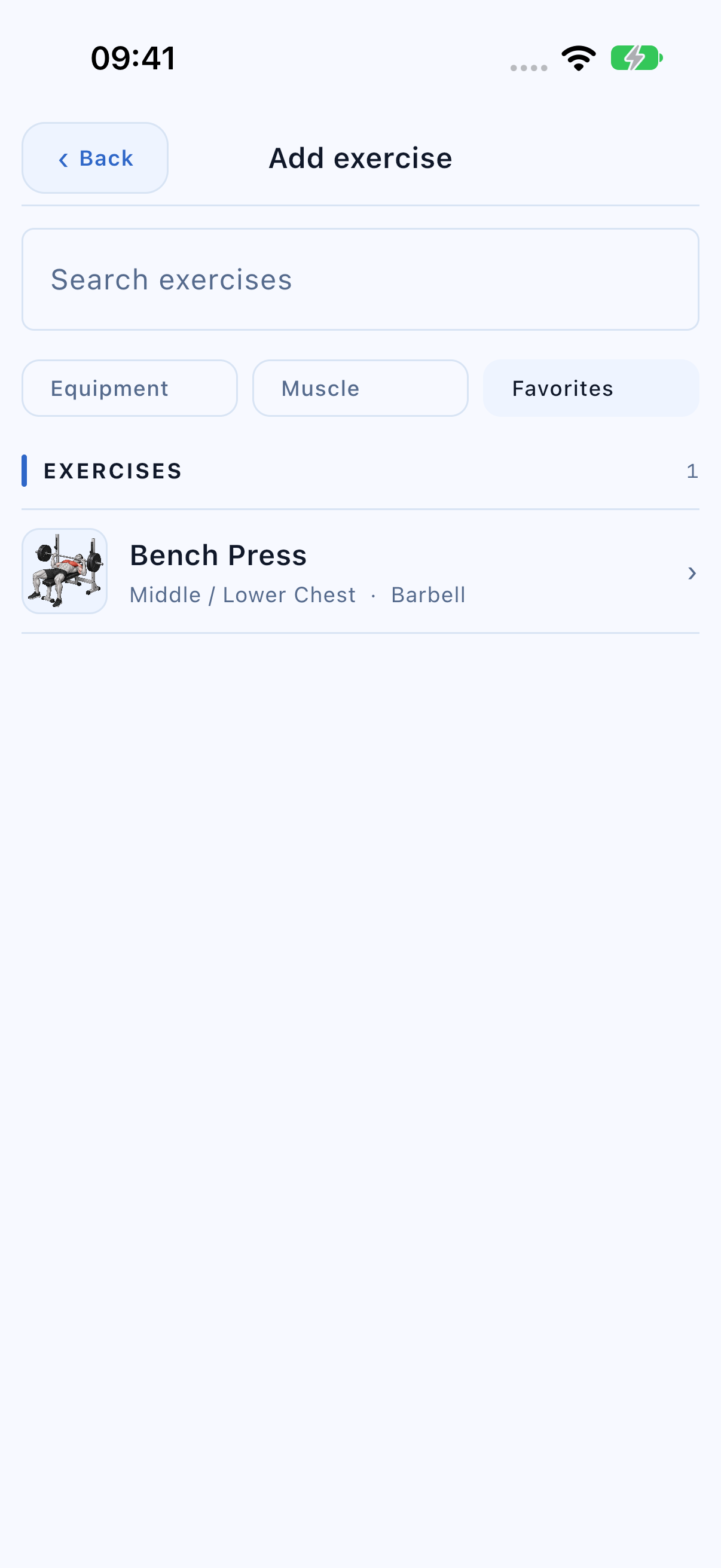
Find favorite Exercises while planning
In Add exercise, enable Favorites to show movements marked as favorites in the Exercise library. Combine it with the search, Equipment and Muscle filters. Turn Favorites off to return to the full matching catalog.
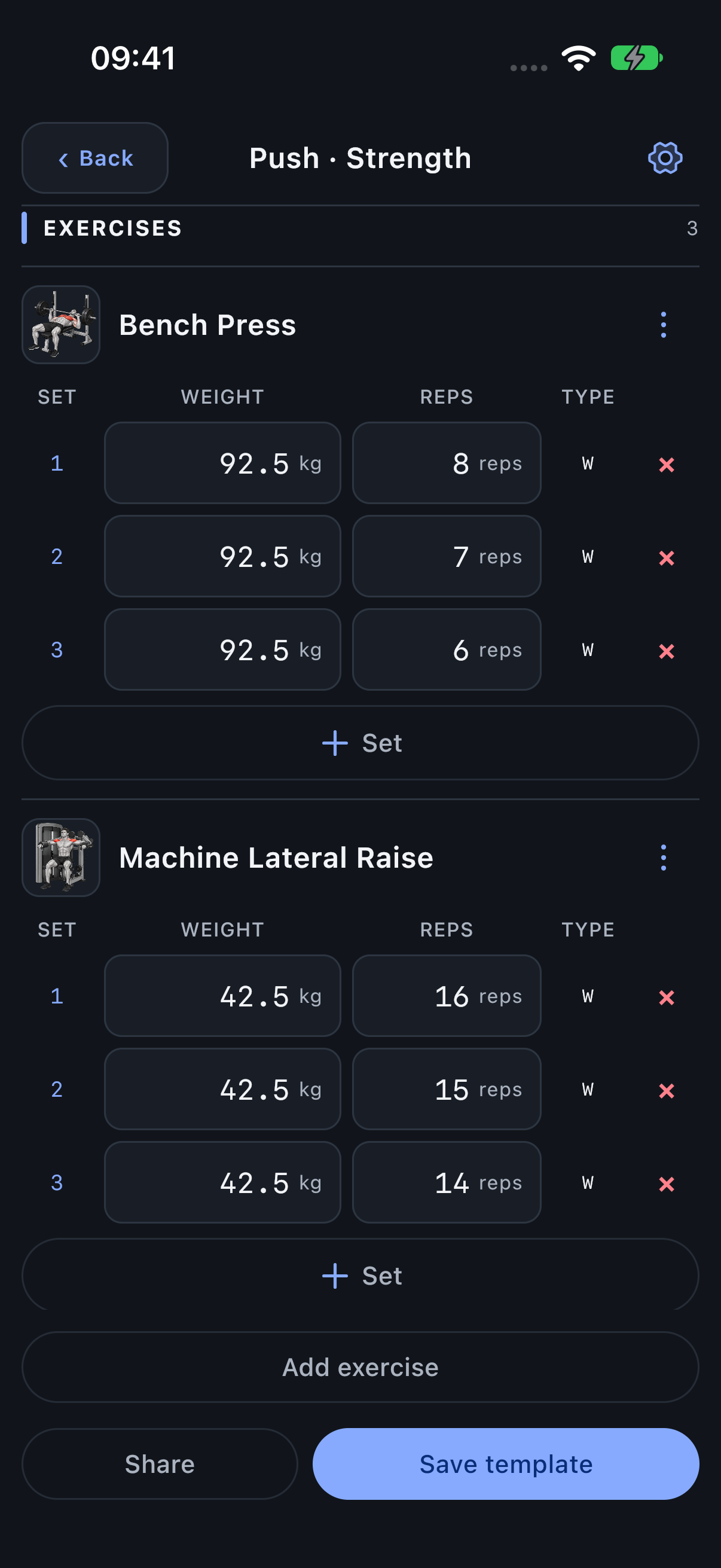
Plan targets and rep ranges
Choose target loads and rep counts in the same metric fields that will be used during training. A rep range belongs to the target; Actual remains the one rep count you perform. Use Type → Rep target / range to set the bounds.
You can plan 80 kg for 8–12 reps. During training, 9 is a valid actual count inside that range. It does not turn the next planned range into 8–9. Read the autofill rules before choosing how future targets advance.
Plan methods and linked Exercises
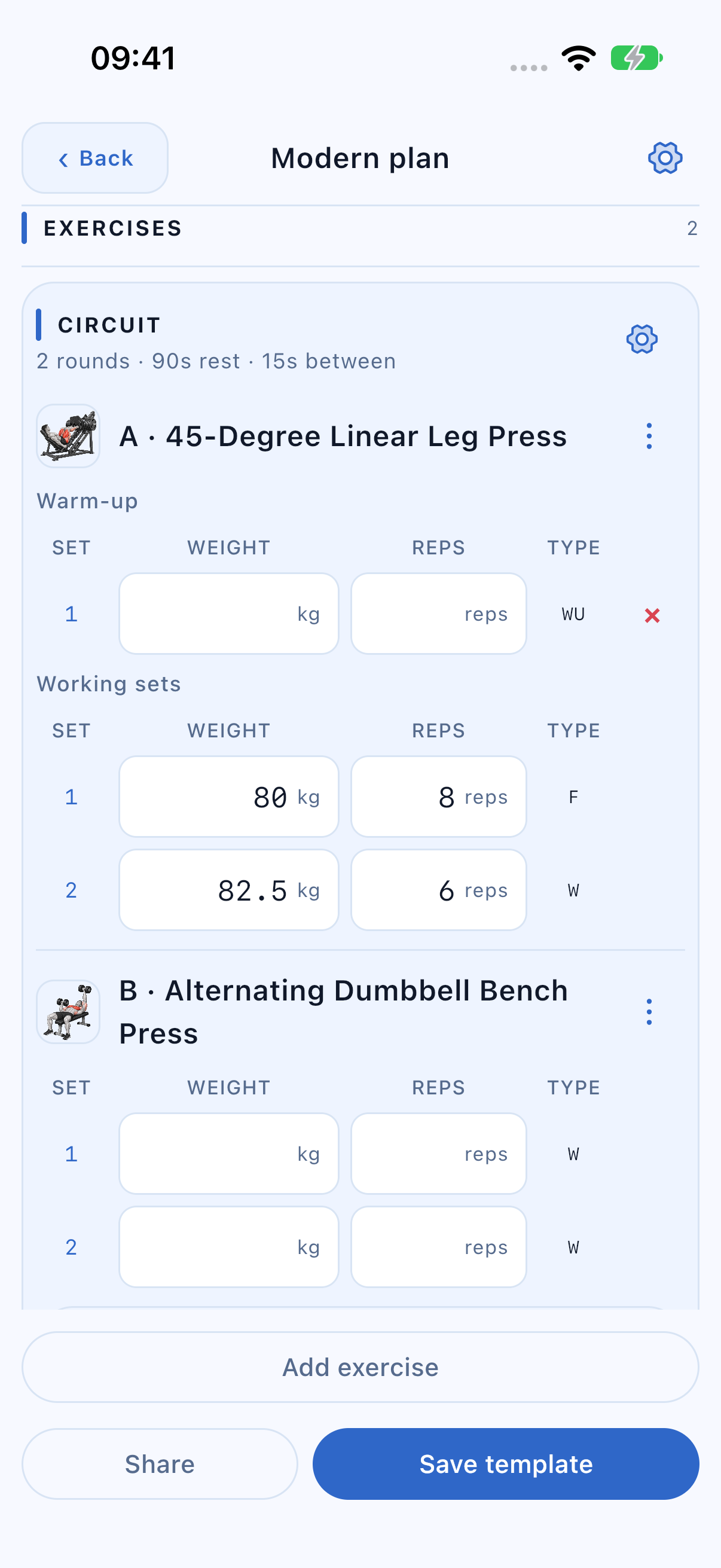
The planner uses the same Type picker for ordinary, warm-up and failure sets, nested Drop stages and Myo-reps. For Superset / Circuit, use the Exercise menu’s Tools entry and choose members, order, rounds and rest.
In the planner, target rows stay together by Exercise so you can edit them conveniently. During the session, a group is shown round-first: A, B, C, then A, B, C. A plate calculator belongs to the live workout; the warm-up calculator is available while planning too.
Set the name, colour, folder or reminder
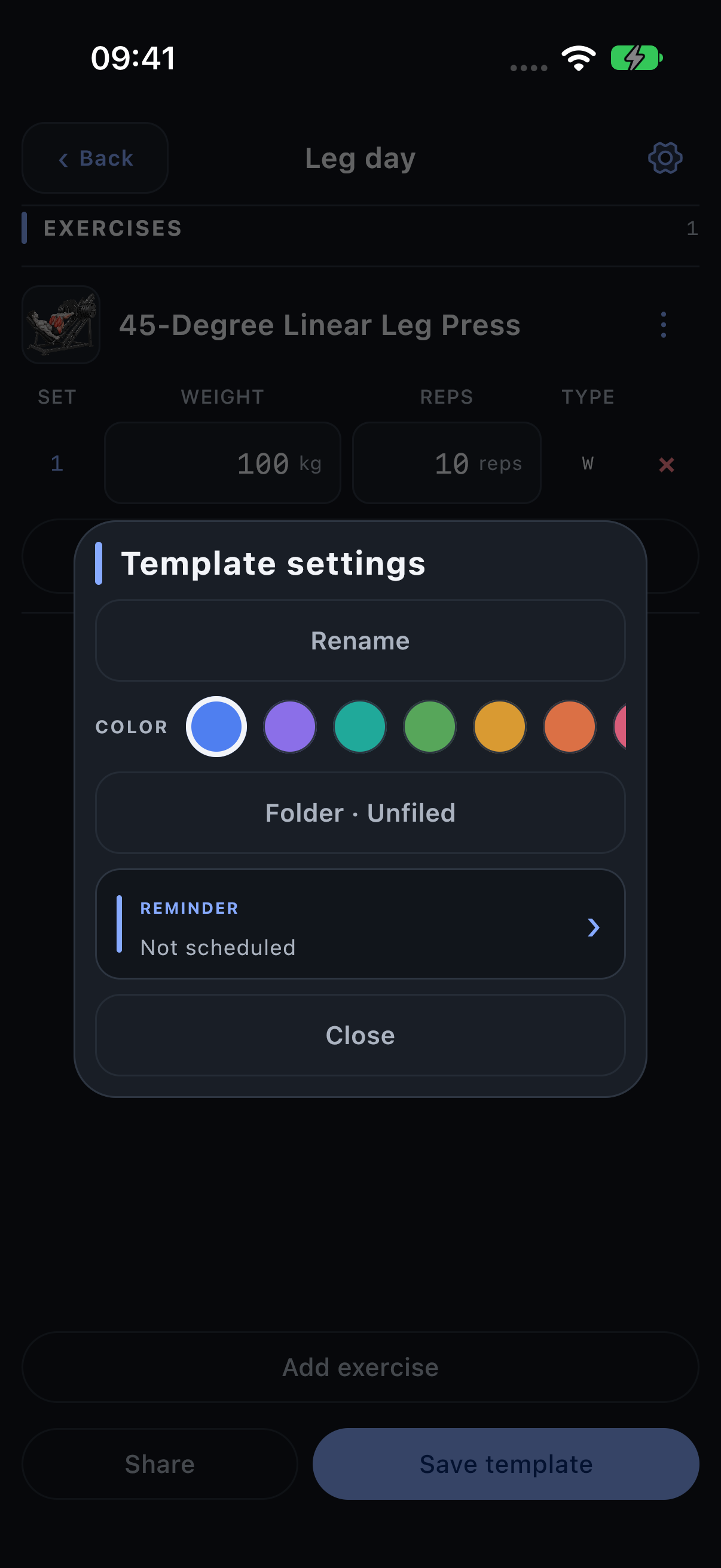
Open the header gear. Rename identifies the workout; colour and folder help organise Train; Reminder sets its weekdays and time. These controls apply to the template rather than becoming extra fields between every Exercise.
Schedule a template reminder
- Open the template’s settings and Reminder.
- Select the weekdays and local time you want.
- Save the reminder and allow notifications in iOS if prompted.
- Save the template. Use Remove in that reminder’s settings to stop its schedule.
Reminders belong to individual templates. They are optional and do not automatically start a session or record completed work.
Organise templates on Train
Folders narrow the list; Unfiled holds templates with no folder. Use Favorites for frequently used plans. A left-to-right swipe offers organisational actions such as Favorite and Archive. A right-to-left swipe exposes management actions such as Edit, Duplicate and Delete; visible row actions provide alternatives.
Duplicate creates a separate plan you can change. Archive keeps the template recoverable outside the normal list. Starting a template creates a session; recording a lower result does not rewrite the plan as if the lower target had been intended.
Restore a deleted template
- On Train, select the Deleted filter with the bin icon.
- Find the template marked Recently deleted.
- Tap Restore, then return to All or its folder.
Deleting a template is separate from deleting workouts already recorded from it. Use Archive when you only want to take a plan out of your everyday list.