 TrainNotes
Import history and protect your data
Use a workout import to bring another app’s log into TrainNotes. Use a full TrainNotes backup to preserve the complete local record. A CSV export, a template file and a recovery backup contain different things.
Review an external workout export
- Export a CSV from your original training app and save it in Files.
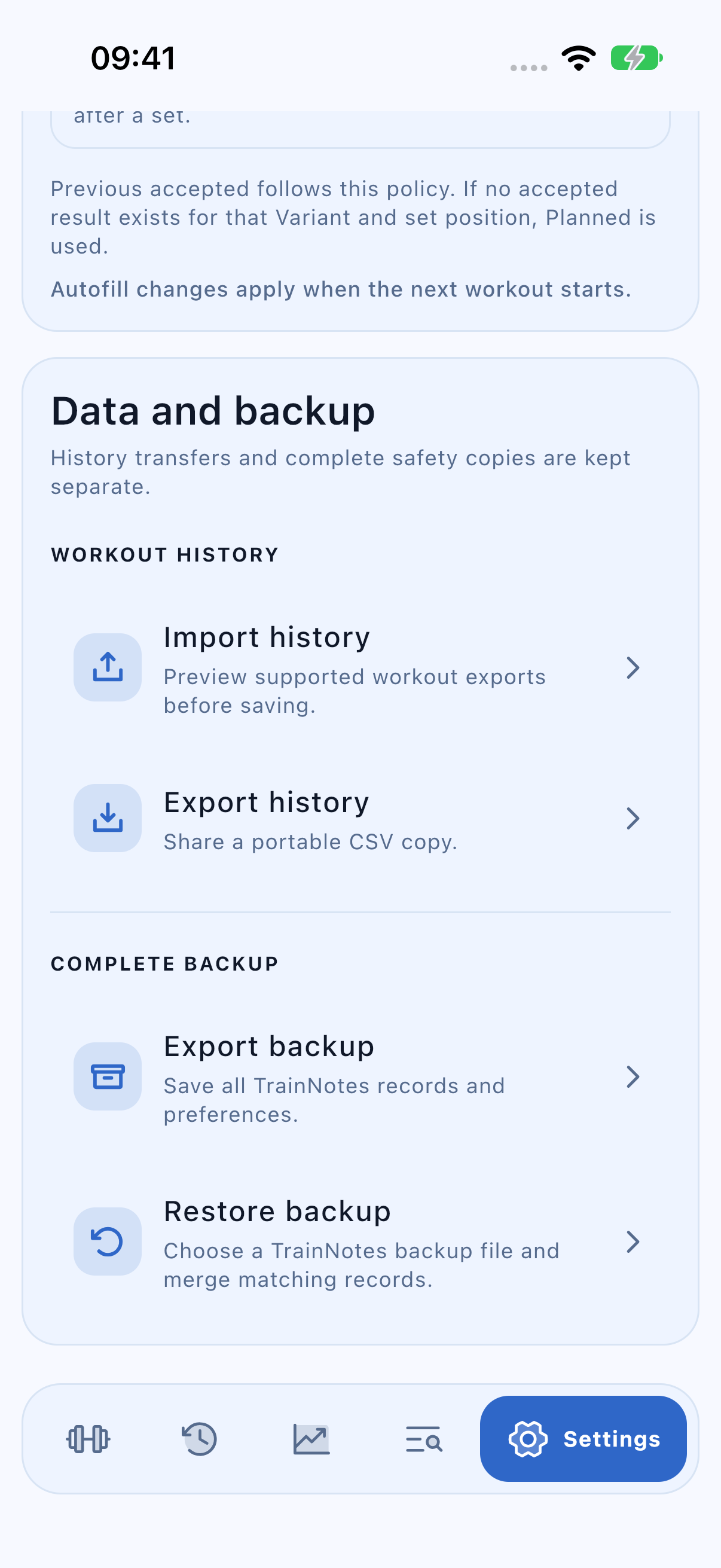
- Open Settings → Data and backup → Import history.
- Choose CSV file, then select the export.
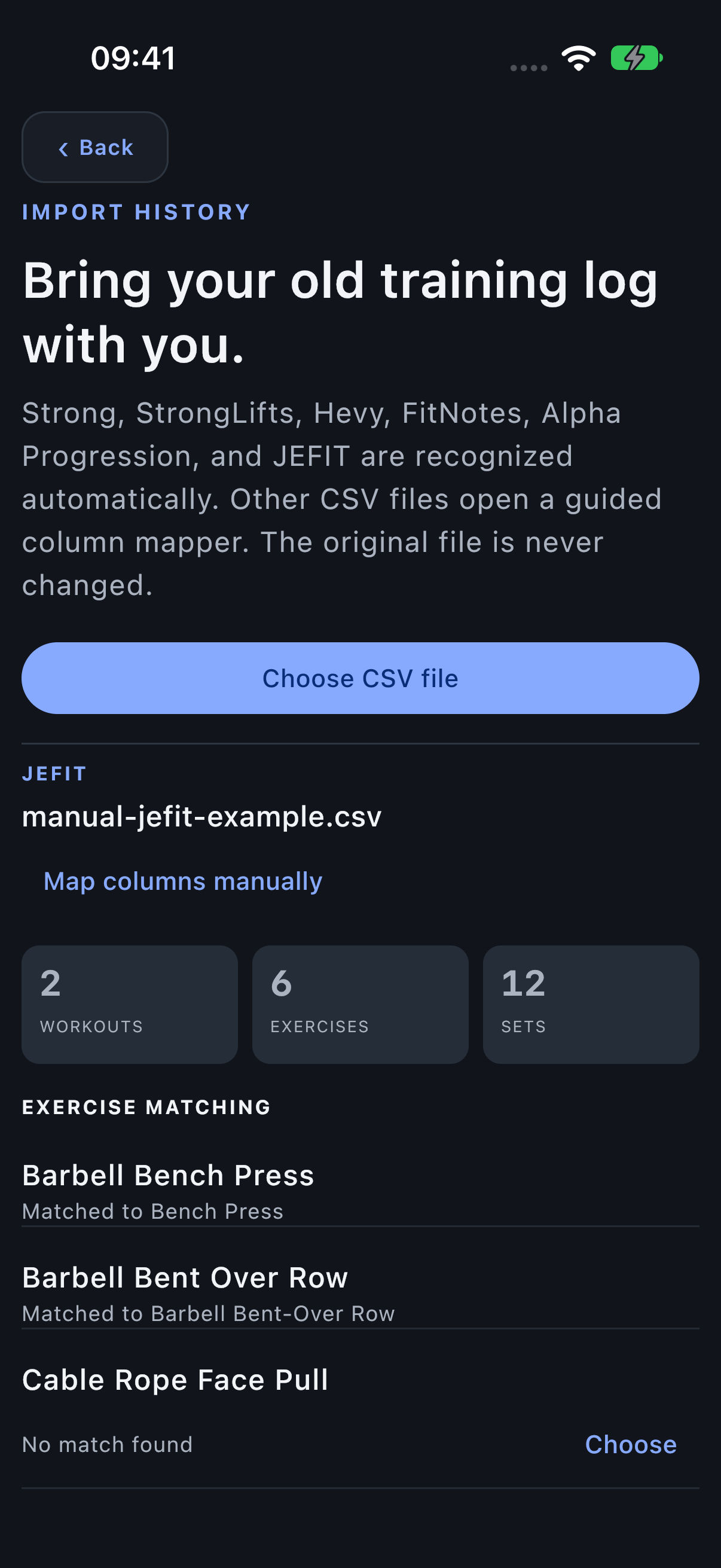
- Check the detected source and counts of workouts, Exercises and sets.
- When the source omits units, choose the unit used in that export.
- Review Exercise matches and warnings before importing.
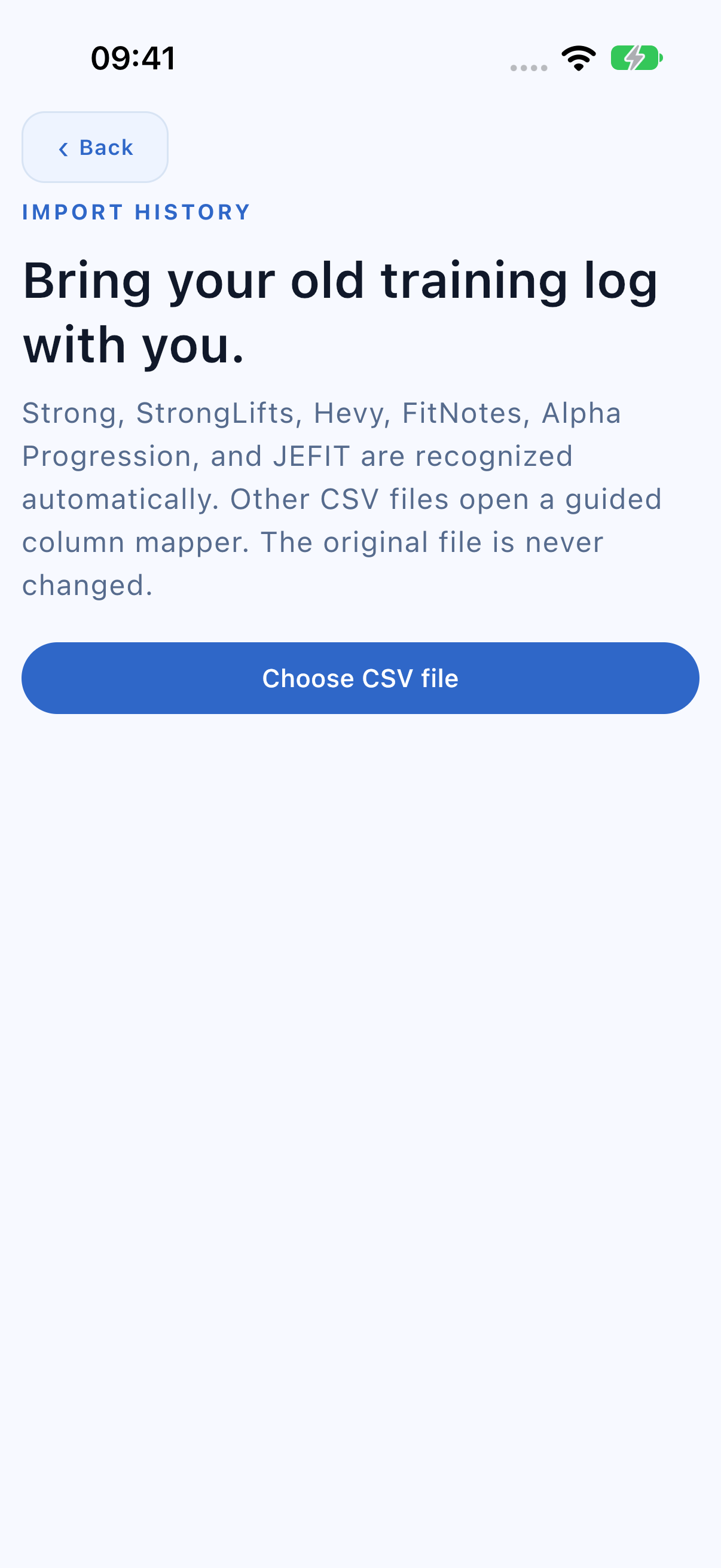
Supported source formats
TrainNotes recognises Strong, StrongLifts, Hevy, FitNotes, Alpha Progression and JEFIT exports. A source can have more than one export layout, so the preview is important even when the app name was detected. Export files are processed locally; the original file is not changed.
Read the import preview before saving
The preview separates source information, workout/Exercise/set counts and matching decisions. Missing source units require your selection. Check that the counts resemble your original log before completing the import.
Choose the correct movement
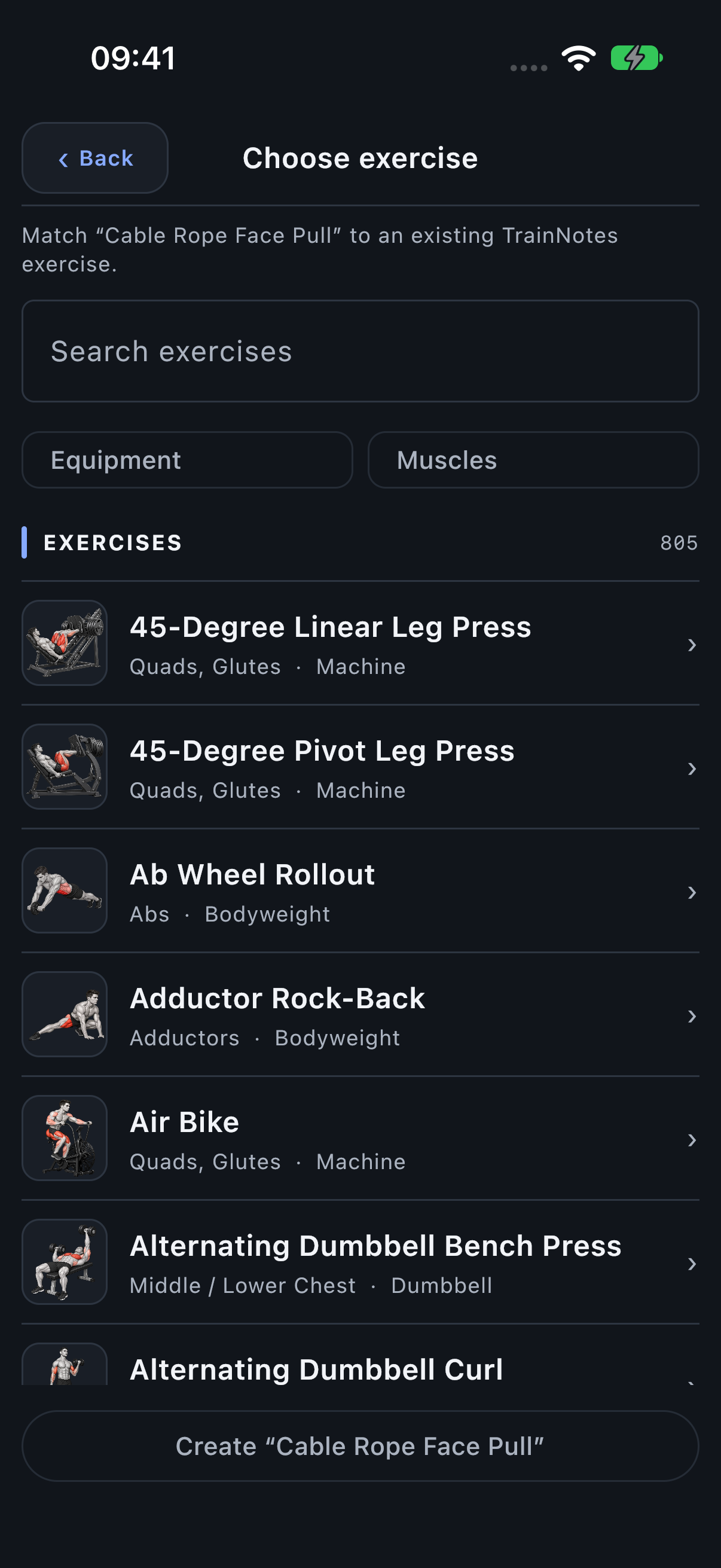
A confident match is filled automatically. For an unresolved or ambiguous name, choose an existing Exercise through the full illustrated catalog, or create a new Exercise when the movement is genuinely absent. Use Change to correct a proposed match. Compare equipment and movement, not only similar words.
Resolve required matches before importing. An unsupported metric combination is reported instead of silently dropping a value. A warning is a reason to inspect the source rows and selected schema, not to assume the import preserved everything.
Map an unfamiliar CSV
Use Map columns manually when the layout is unknown or the detected mapping is wrong. Assign date/workout/Exercise/set and available metric columns, confirm units and date interpretation, then review the reconstructed counts. The file needs enough information to group rows into workouts and sets.
Import and locate the sessions
After confirming, sessions keep their original dates. Open History’s month/year picker to find older entries. Detected duplicates are counted and skipped. Do not repeatedly import a file merely because the sessions are not in today’s list.
Past imports → Undo asks for confirmation and removes the workouts created by that import, leaving unrelated workouts in place. This action is separate from restoring a full backup.
Choose the export that fits the task
- Export history: a portable CSV for inspecting or moving training records; not a full app recovery file.
- Template Share: a plan for another TrainNotes user, without your complete history, photos or personal settings.
- Export backup: a .trainnotesbackup file for the complete local data, including plans/methods, sessions, accepted targets, Exercises/Variants, locations, measurements, embedded photos, import history and settings.
Keep an off-device backup
- Choose Export backup.
- Save it outside the app, such as a Files location you control.
- Keep a current copy before replacing a phone, reinstalling or restoring an older file.
- Retain the file until you have checked that the restored data is present.
A shared chart image cannot restore its underlying sets. TrainNotes stores the main log locally; it does not automatically maintain an off-device recovery file for you.
Restore a complete backup
- Export and retain a fresh complete backup before selecting an older file.
- Open Settings → Data and backup → Restore backup.
- Select the .trainnotesbackup file in Files. Selecting a valid file starts the restore; there is no separate review-and-confirm screen.
- Read the restored-count message and check the resulting sessions, templates, measurements and photos.
Restore adds records missing from the app and updates records with matching stable IDs from the backup. It does not clear every unrelated local record. Settings from the backup are applied. An older file can therefore overwrite a newer version of the same record while leaving other local records in place.
Export a fresh backup first. After restoring, check important sessions, templates, measurements and photos. Keep the original recovery file until you are satisfied with the result.