 TrainNotes
Recovery map and Recovery by muscle
How long has it been since the recorded training for a muscle?
What it shows
Recovery is a time-based estimate from completed working sets involving Primary, Secondary or Isometric muscles. The figure and rows present that estimate alongside the last-training time. It does not measure soreness, readiness or tissue recovery.
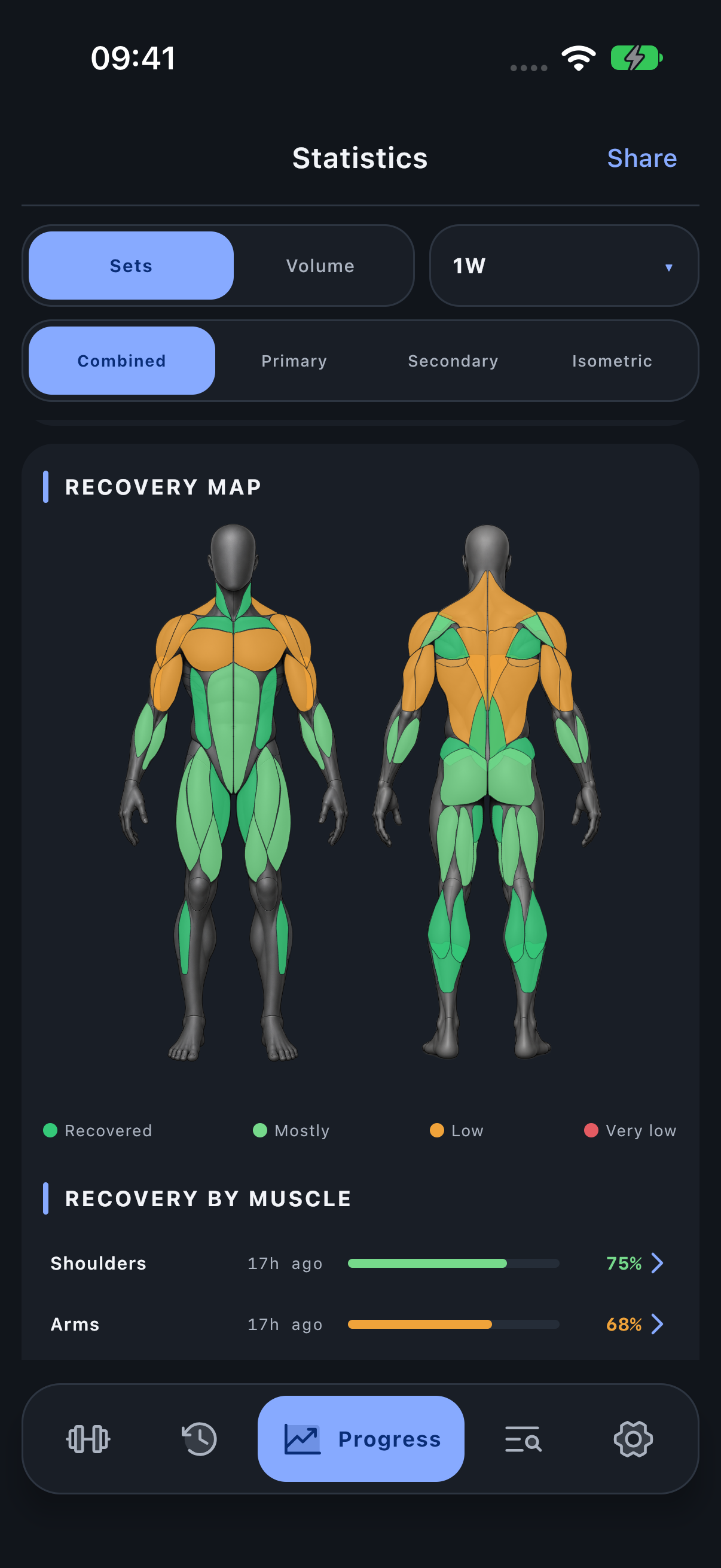
How to read it
Use the legend: Very low, Low, Mostly and Recovered. All roles use one linear 72-hour scale. Primary leaves 72 hours, Secondary 48 hours and Isometric 12 hours. Readiness is 100% × (1 − remaining hours / 72), initially about 0%, 33% and 83%. After 24 hours these become about 33%, 67% and 100%. These are estimates, not measured recovery times. A muscle without recorded training also appears at 100%; the missing last-trained time is important context.
A muscle trained six hours ago can show a low estimate while one last trained three days ago shows 100%. Neither value overrides how you feel. A parent group can have an intermediate percentage because its children were trained at different times.
Read the last-trained rows
The time label and percentage belong together. A dash for the date means that the app has no qualifying training time for that muscle; a green 100% is not proof that it was trained and recovered.
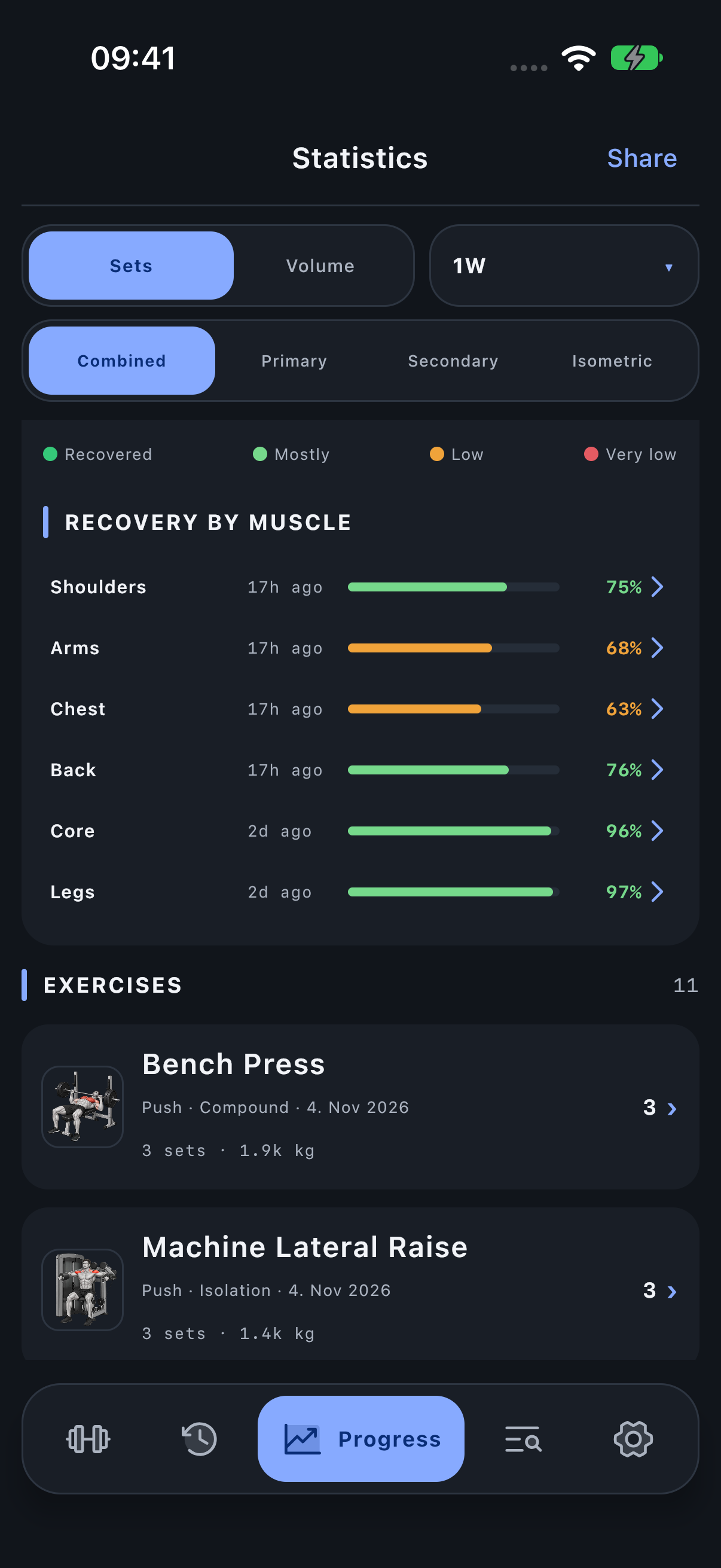
Period, units and filters
Recovery uses all finished training history and the current time for the muscles displayed. The period, Sets/Volume and involvement-role selectors do not filter its source training or reset its clock. A muscle detail changes which muscles are displayed. Movement/mechanics classification filters do not recalculate this recovery model. Isometric involvement uses a shorter and lighter recovery estimate. Earlier stronger exposures remain active even after a more recent light exposure. A group percentage averages its underlying muscles.
Investigate the result
Read the Recovery by muscle rows for percentages and time labels, and tap a navigable row to inspect that group. The activity map is a separate view of workload, not this clock.
Open Progress → Statistics and scroll to the named module.