 TrainNotes
Find and review past workouts
Use History to locate the training you recorded on a particular date, inspect its actual sets, or repeat its structure. Its calendar is different from the rolling periods used in Statistics.
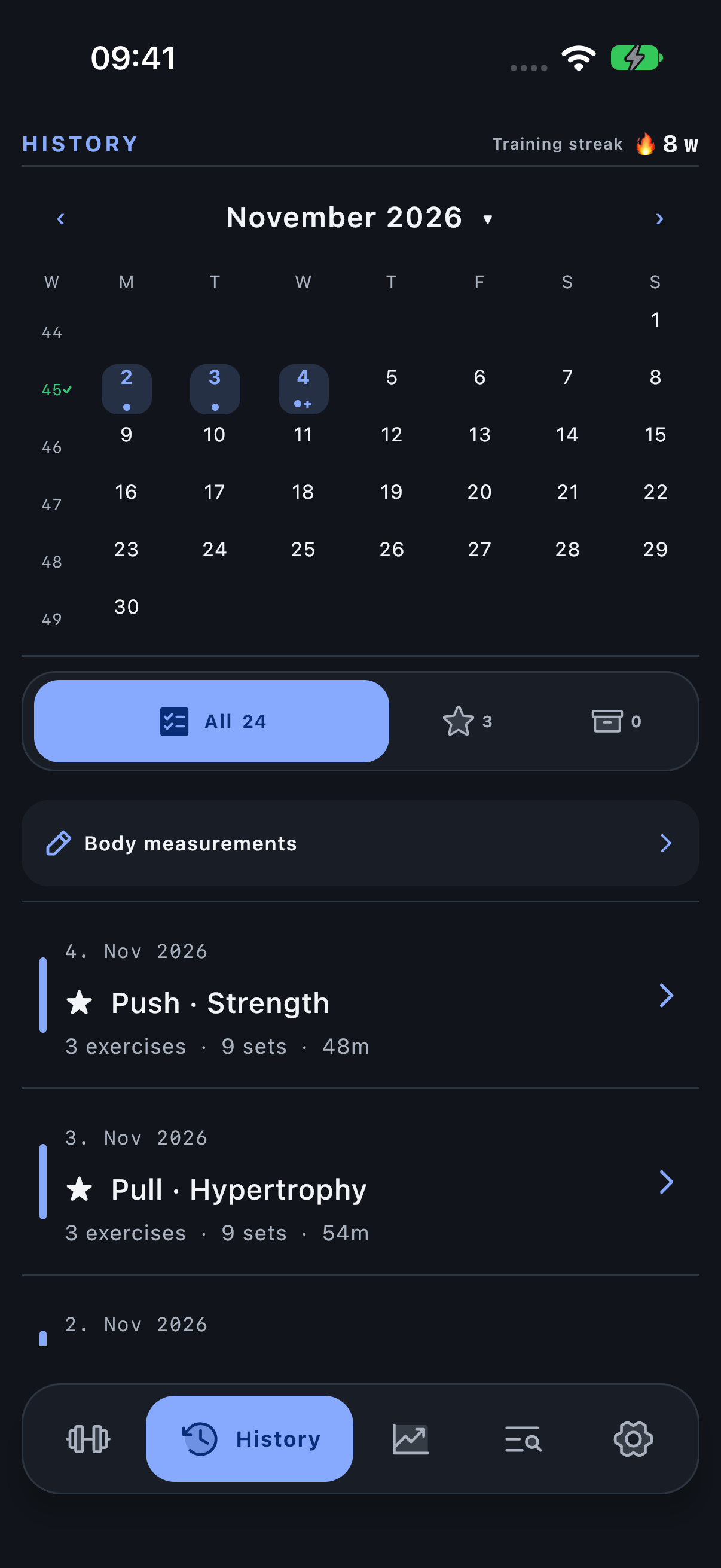
Find a date or month
- Open History.
- Use the arrows for adjacent months.
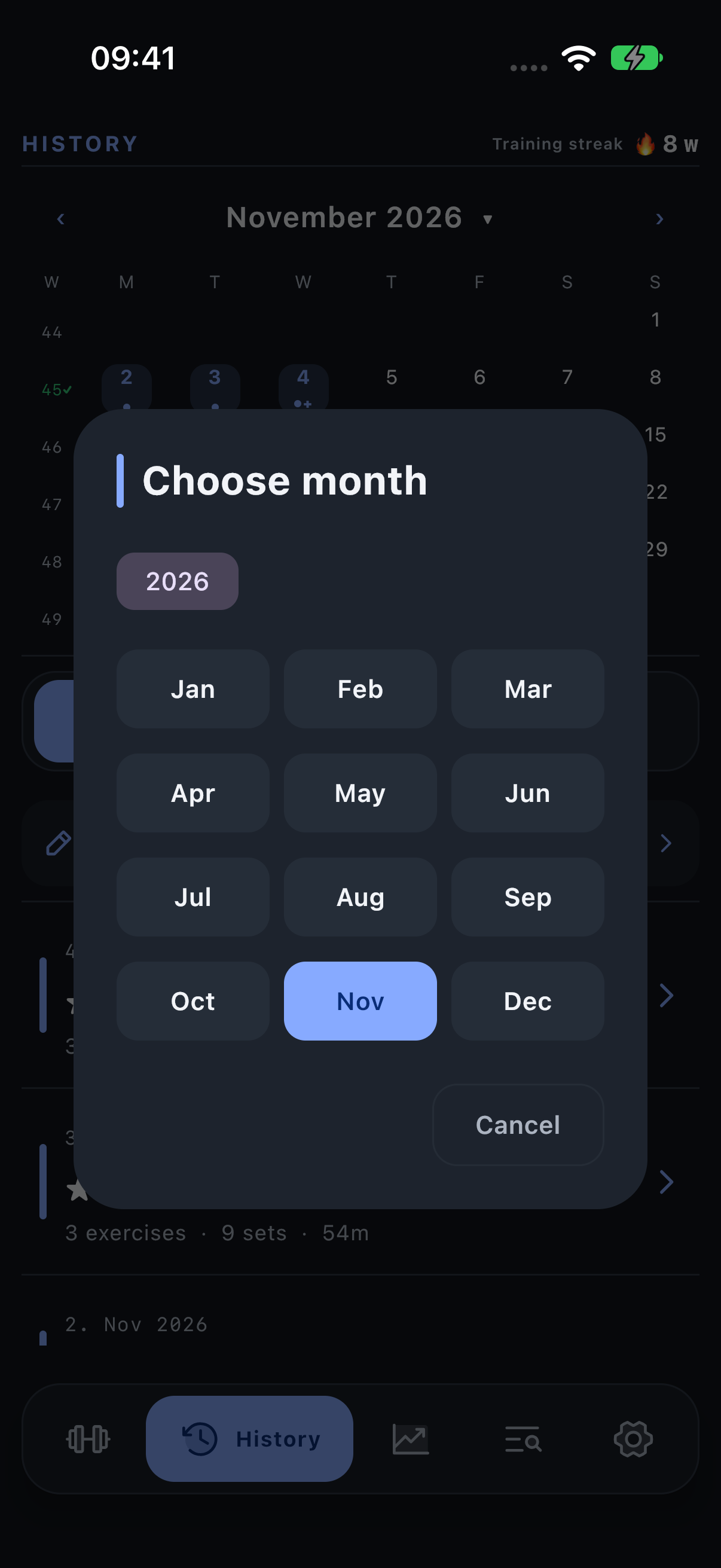
- For a larger jump, tap the displayed month and year, choose the year and select a month.
- Tap a day to narrow the workout list to that date; tap it again to remove that day selection.
Jump to old records directly
The month/year picker avoids repeated arrow taps. This is particularly useful after importing several years of workouts. An imported session stays on the date from its source file, not the date you imported it.
Open the actual workout record
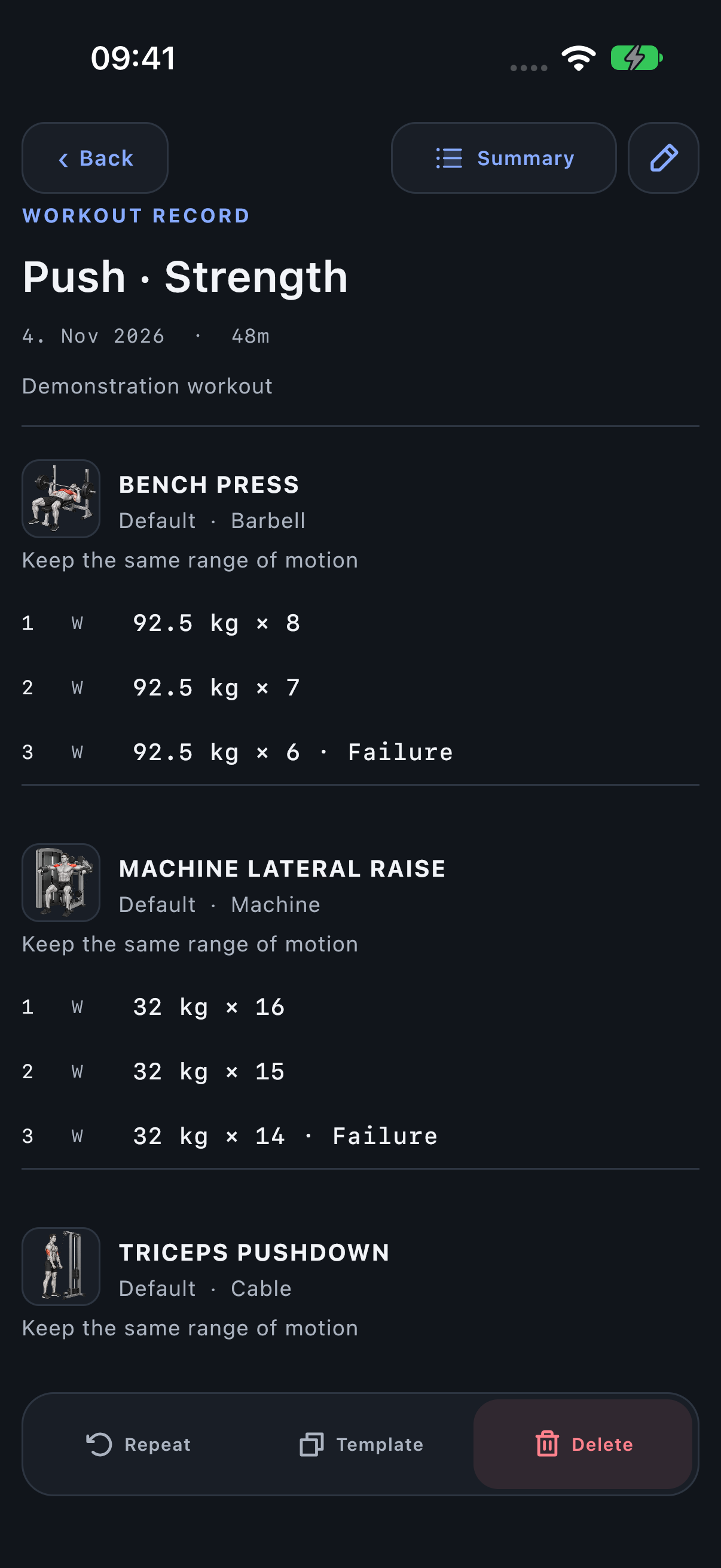
Select the workout from the dated list. Review the Exercise and Variant names, successful actual metrics, set types and notes. Use Summary for analysis of that session, including historical comparisons; it opens a separate view. Edit workout is for correcting recorded facts, not changing what you intend to attempt next time.
Repeat, favourite or archive
Repeat uses a finished session as the basis for a new workout while leaving the original dated record in place. Favorite helps retrieve important sessions. Archive removes a record from the normal All list while preserving it in Archived. Delete is a different removal action.
As elsewhere in TrainNotes, a leading left-to-right swipe offers organisation and a trailing right-to-left swipe exposes management. Use visible row actions if you prefer tapping.
Find a workout that seems missing
- Check the original training date, especially for imported files.
- Jump to that year/month.
- Clear a selected day if it excludes the date you need.
- Check All, Favorites and Archived filters.
- Check the imported-workout count and source preview before trying the import again.
Successfully importing the same file again is not a way to move the sessions to today. Use the import review and Undo tools when an import itself needs correcting.